Show in person
At a desk or a door there are two ways: the other person scans a result QR code with their own phone camera (Get checked), or a reader device connects over Bluetooth.
Topics in this guide
Before you start
- The credential to show is in your wallet.
- Internet for Get checked; Bluetooth permission for the Bluetooth way.
Steps
Step 1: Get checked: Home → Show → under “Another way”, Get checked
Choose a scenario (e.g. student discount) and tap Start. The other person scans the result with their own phone camera.
Step 2: Approve the fields and show the “Result QR code”
Confirm with your phone's lock (Face ID / Touch ID or the phone passcode). The checker only sees the result and the fields you approved; the link is valid for 5 minutes and the QR code contains no credential data.
Step 3: Bluetooth: on the credential page, Show in person (Bluetooth) → Start
Let the reader scan the QR code. Keep this screen open.
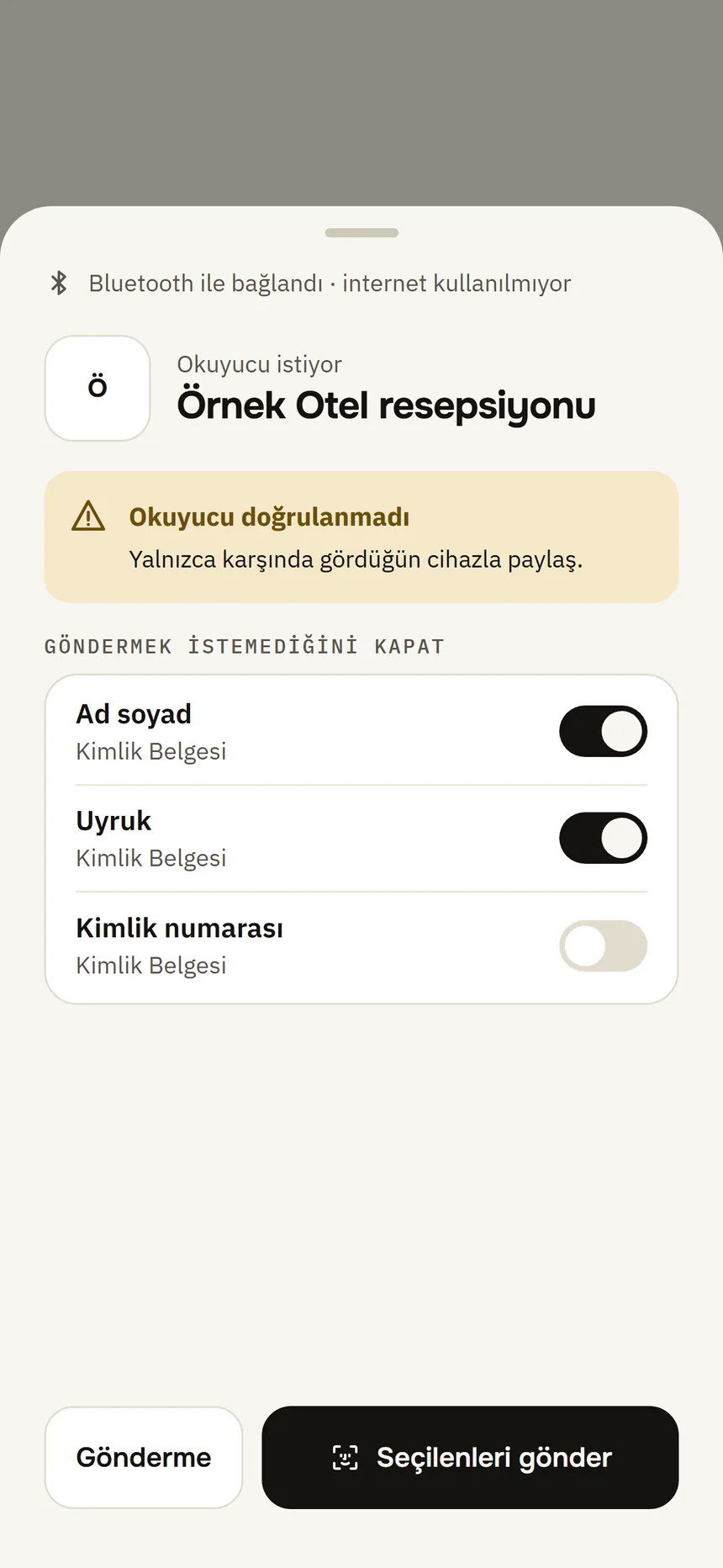
Show in person Step 4: Check “The reader asks for”
Turn off what you don't want to send, then tap Send selected (or Don't send) and confirm with your phone's lock (Face ID / Touch ID or the phone passcode).
Good to know
- The Bluetooth way uses no internet; your phone's NFC is not used.
- This version cannot check who the reader belongs to (“The reader is not verified”): only share with a reader you can see in front of you.
- Bluetooth errors: “No reader connected in time.”, “The reader disconnected.”, “Bluetooth is off or not available.” — turn Bluetooth on and tap Start again. Nothing is sent when an error happens.
Related guides
- Use an access pass at a turnstile or gateYou register an access pass once for your student certificate or ticket; then you hold a constantly refreshing QR code that contains no name or number to the turnstile.
- What works without internet?Without internet you can still view and show your documents; getting, renewing and the revocation check need a connection.