Save your revocation code
The revocation code lets you close your wallet from any browser if you lose your phone. It is shown only once.
Topics in this guide
Before you start
- Your wallet is set up.
- An internet connection.
Steps
Step 1: Open “Your revocation code”
It opens by itself during setup. Later: Settings → Security → Revocation code, or the “Create your revocation code” card on the home screen. Outside setup you first confirm with your phone's lock (Face ID / Touch ID or the phone passcode).
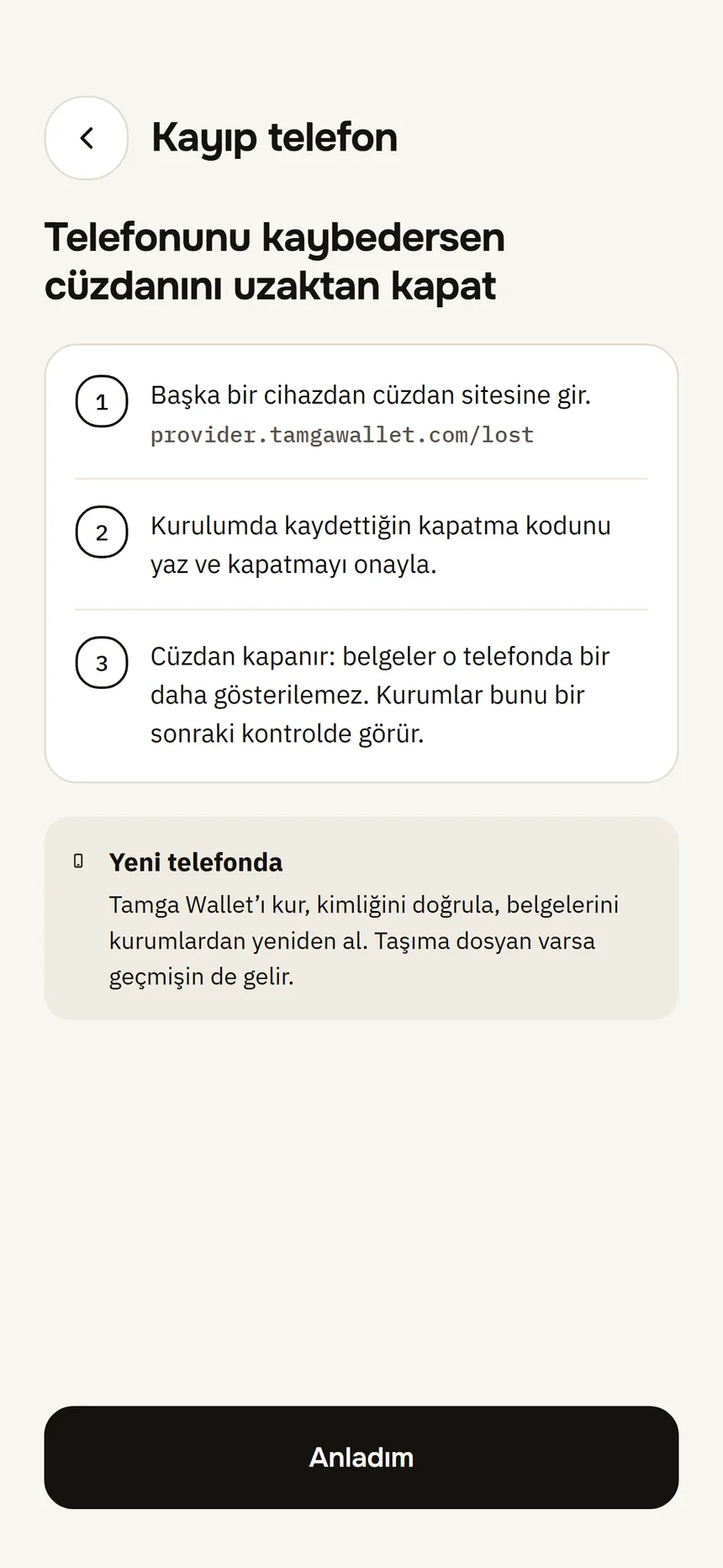
Lost phone Step 2: Write the code down or keep it somewhere safe
Write it on paper or type it into your password manager. Screenshots cannot be taken on this screen.
Step 3: Tap I saved it
Only then does the code become valid. If you go back or tap Not now, your previous code (if any) stays valid.
Step 4: If you lose it, create a new one
Create a new code from the same place. The new code replaces the old one; the old one stops working.
Good to know
- The code is not stored on this phone; only a one-way fingerprint is kept at Tamga Wallet's wallet provider.
- Case and dashes do not matter when you type it.
- Where to use it: the Lost phone page.
- If your wallet's registration is renewed, the app says “Create your revocation code again”; the old code no longer works.
Related guides
- I lost my phoneWith your revocation code you close your wallet from any browser; then you set it up on a new phone and get your credentials from the institutions again.
- Set up your walletOn first launch a five-step setup greets you: PIN, Face ID / Touch ID, revocation code, identity verification and your first credential.