Prove your age
If a website asks only for “Over 18”, only that answer is sent: with a zero-knowledge proof your name, your date of birth and the credential itself are not shown.
Topics in this guide
Before you start
- Your identity credential: Verify your identity.
Steps
Step 1: On the website, choose age verification and scan the QR code with Scan
The wallet fetches the request.
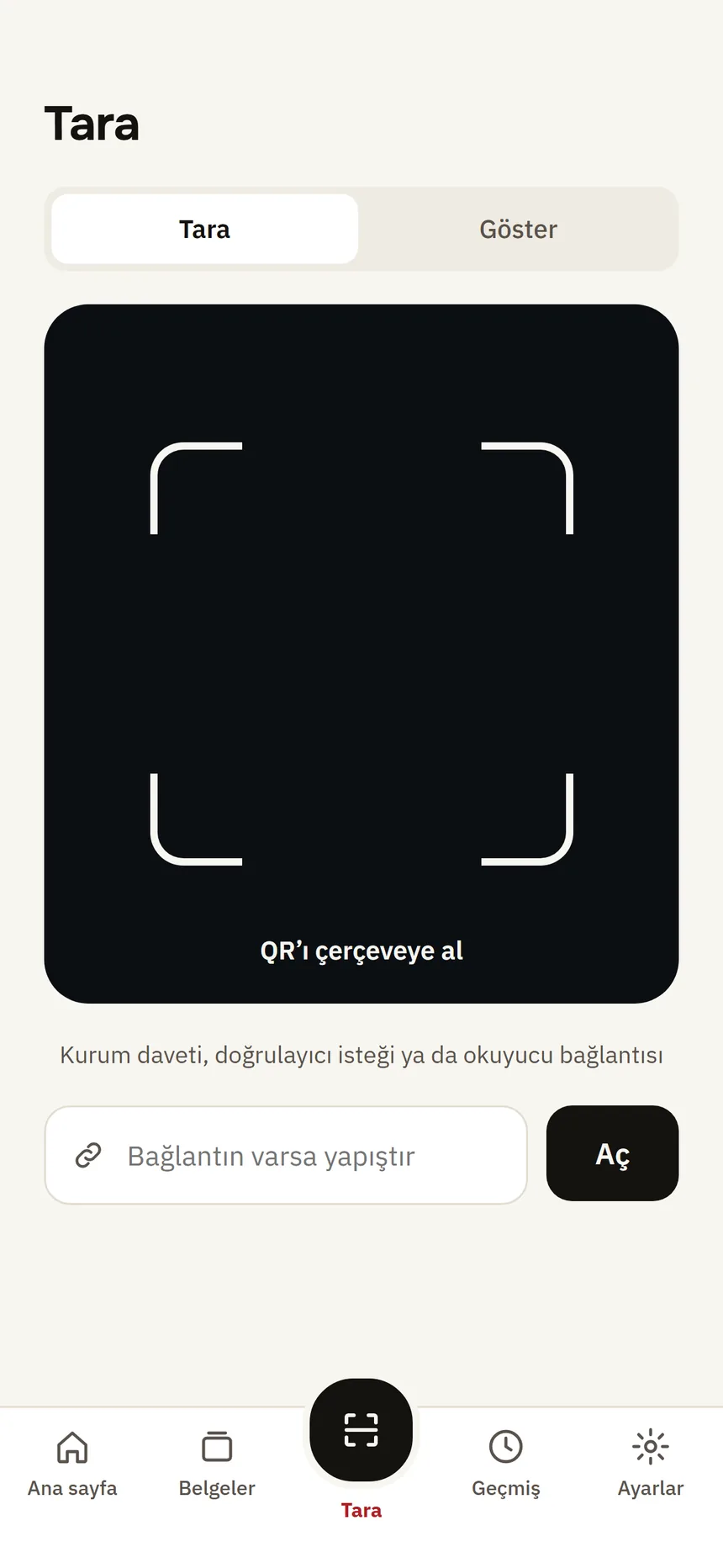
Scan Step 2: Check the field on the approval screen
Only “Over 18” should be listed. If other fields are requested you see those too.
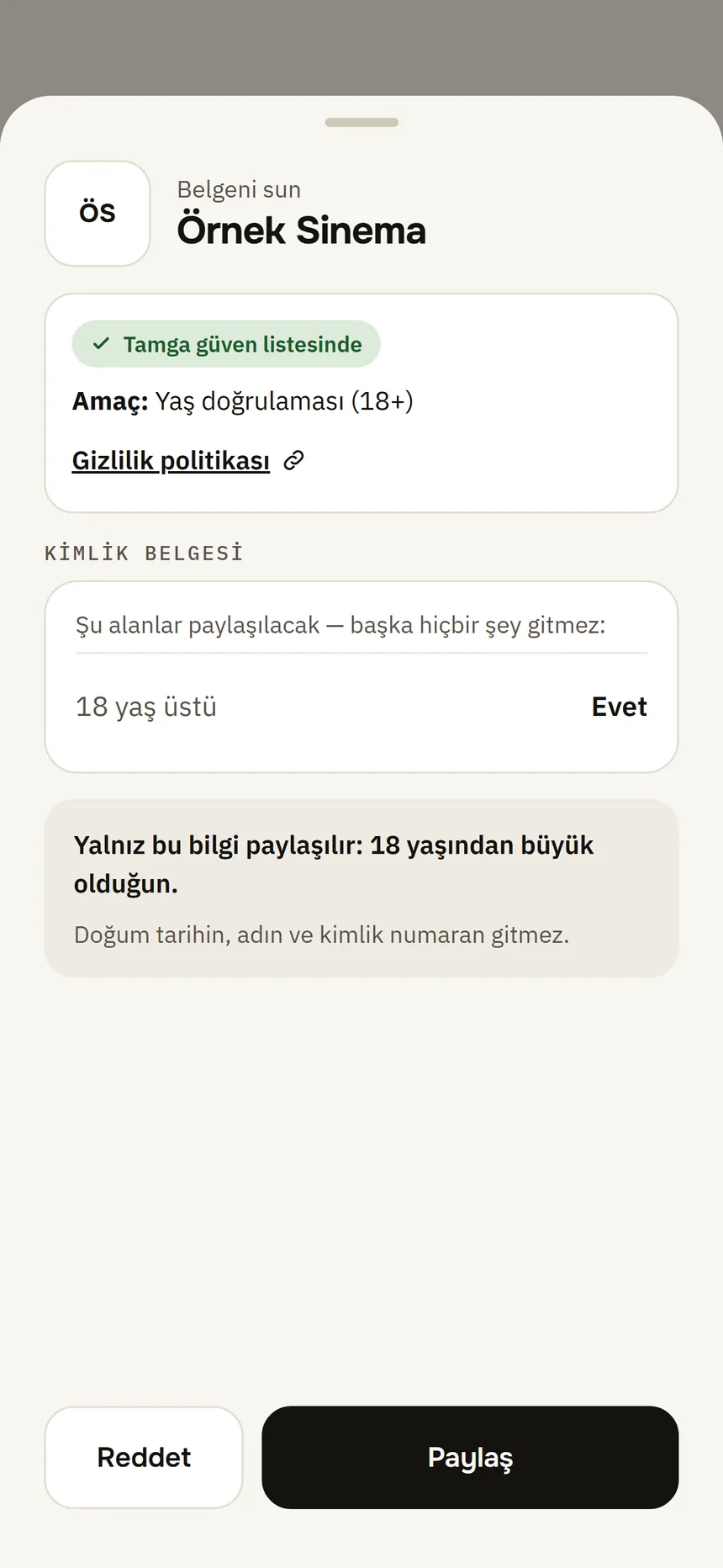
Age approval Step 3: Tap Share and confirm
With your phone's lock (Face ID / Touch ID or the phone passcode). The website sees only yes or no.
Good to know
- Your name, date of birth and ID number are not sent.
- If you are under 18, nothing is shared; the app says your credential does not meet the request's condition.
- Zero-knowledge proof: the approval screen says that only a yes/no proof is sent and the credential is not shown. If your phone cannot create the proof, still only the “Over 18” field is sent the usual way.
Related guides
- Show a credential on a websiteThe website shows a QR code; you scan it with Scan, see who is asking for what and why, and approve only those fields.
- Requests with options, and missing informationSome websites ask for one of several options or for optional information; you choose what is sent. If they ask for something your credential does not have, nothing is sent.
- Verify your identityYou verify once remotely with your ID card or passport and your face; the result is an identity credential on your phone that institutions recognise you by.