Expiry, notifications and refreshing copies
The wallet warns you before a credential expires; when copies run low you get new ones from the institution.
Topics in this guide
Before you start
- An internet connection to refresh.
Steps
Step 1: Turn on phone notifications
Settings → Notifications → Phone notifications. You get reminders before a credential expires, even when the app is closed; the lock screen shows no details.
Step 2: Check in-app notifications
The bell on the home screen opens “Notifications”. You see a warning 30, 7 and 1 days before expiry; tapping it opens the credential.
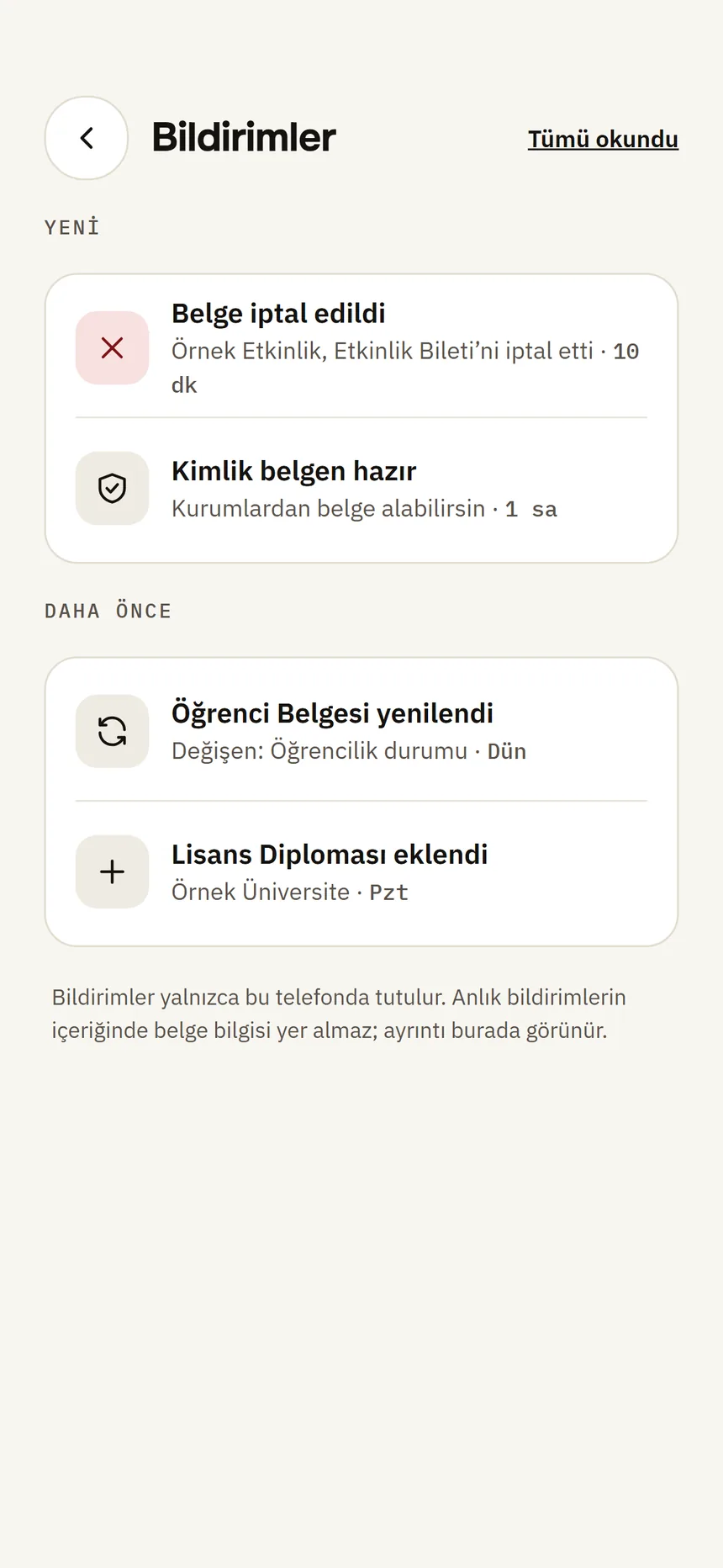
Notifications Step 3: Refresh copies
On the credential page, tap Refresh copies. If a “Copies running low” card appears on the home screen, tap it; the credential opens and you refresh from there.
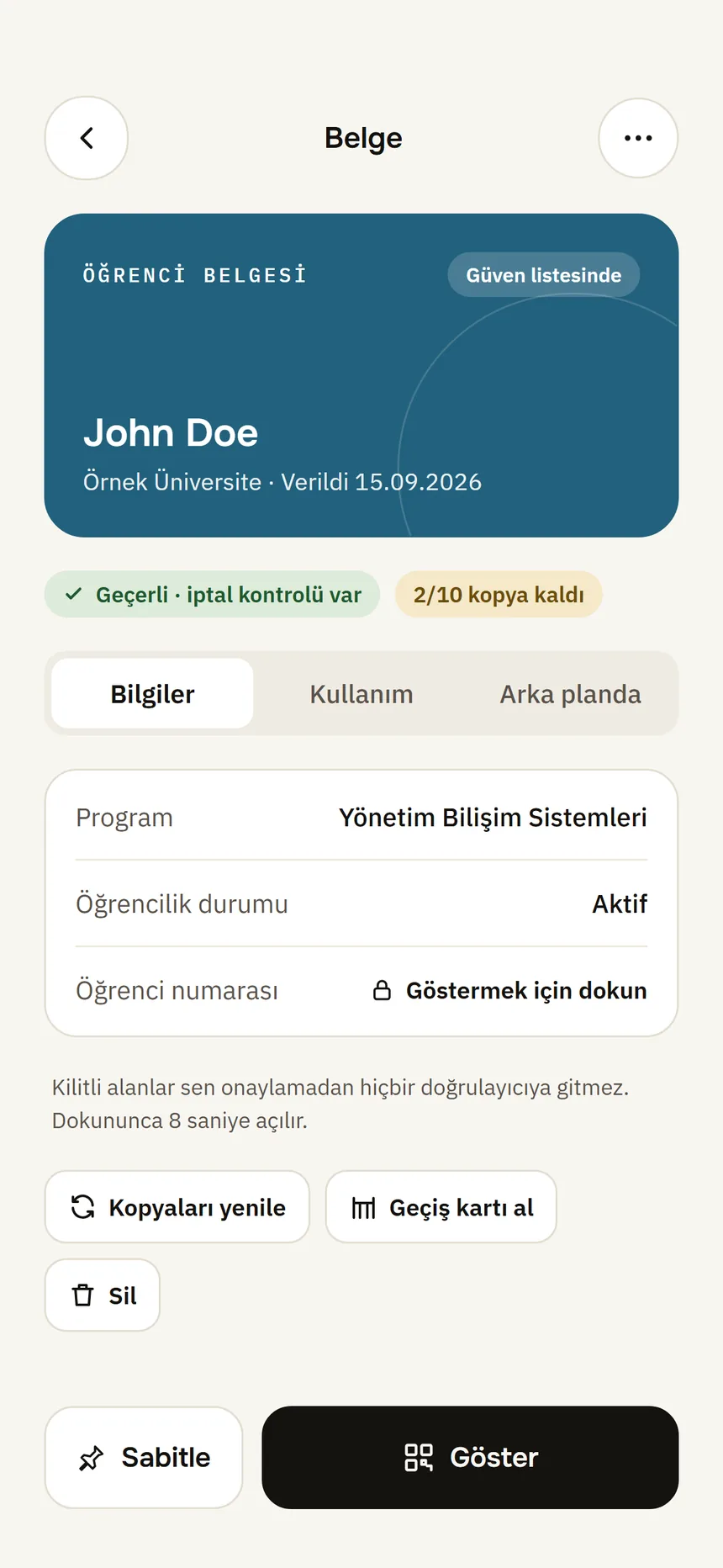
Document detail Step 4: Turn automatic refresh on or off
Settings → Documents → Refresh copies automatically: when few copies are left, the wallet quietly gets new ones from the institution.
Step 5: If it has expired, get a new one
An expired credential can no longer be presented: Request a credential from the institution list.
Good to know
- Copies are only needed for new verifiers; places you have already shown it to are not affected.
- The institution sees that you refreshed, not where you used the credential.
- Identity and contact credentials are not refreshed automatically; refreshing your identity credential repeats identity verification.
- Notifications are created and kept only on your phone; nothing is sent to a server.
- If the institution declines an automatic refresh, you get a “couldn’t refresh automatically” notification; refresh it yourself when copies run low.
Related guides
- Credential status: valid, revoked, suspended, not verifiedWhen online, the wallet itself checks whether the institution has revoked a credential; the badge shows the result and when it was last checked.
- Request a credential from the institution listYou pick the institution from the in-app list and request the credential; the institution matches your identity credential with its own record and sends it.