Verify your identity
You verify once remotely with your ID card or passport and your face; the result is an identity credential on your phone that institutions recognise you by.
Topics in this guide
Before you start
- Your ID card or passport.
- Good lighting and about 2 minutes.
- An internet connection.
Steps
Step 1: On the home screen, tap Verify my identity
It is on the “Verify your identity” card. During setup this screen opens by itself.
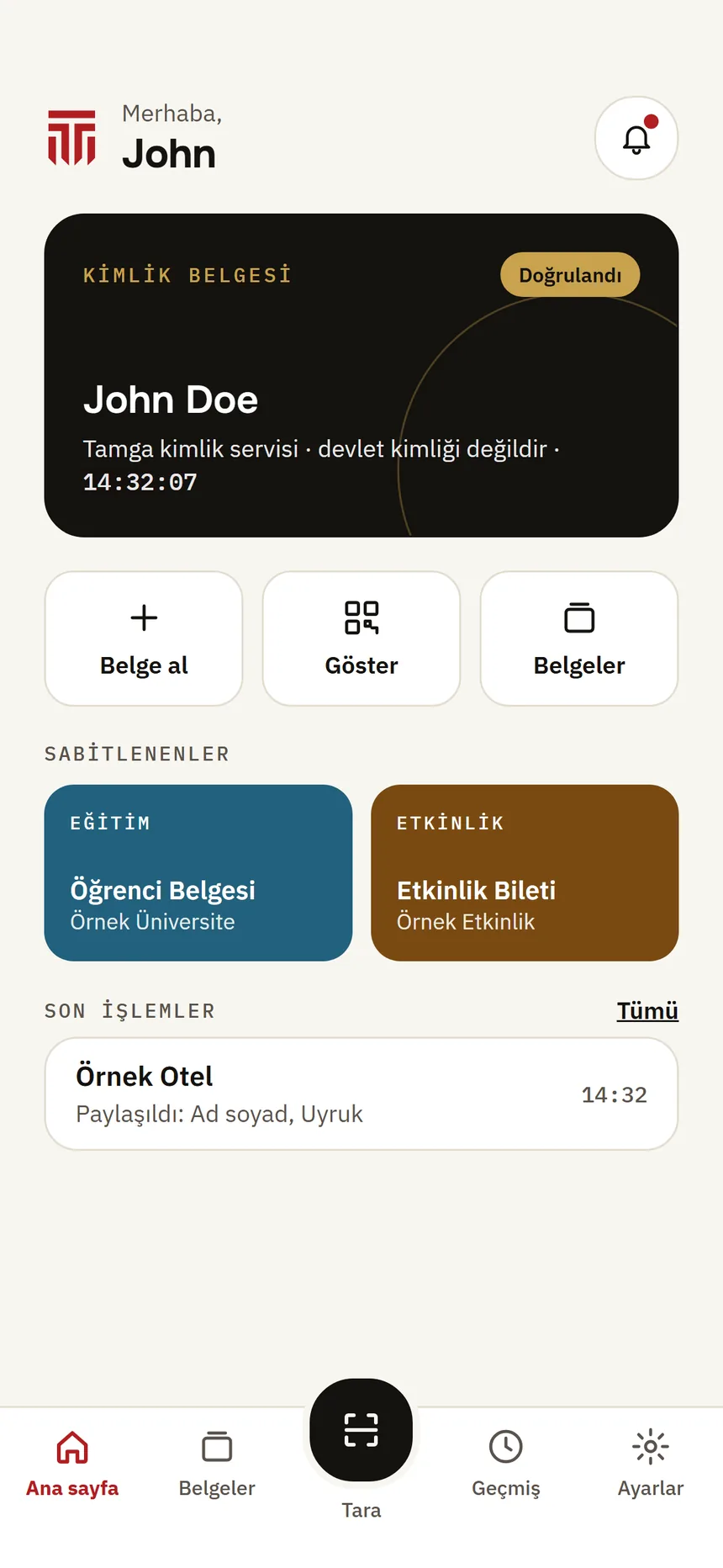
Home Step 2: Read the preparation screen and tap Start
“Verify your identity once, use it everywhere” lists what to have with you and the three steps.
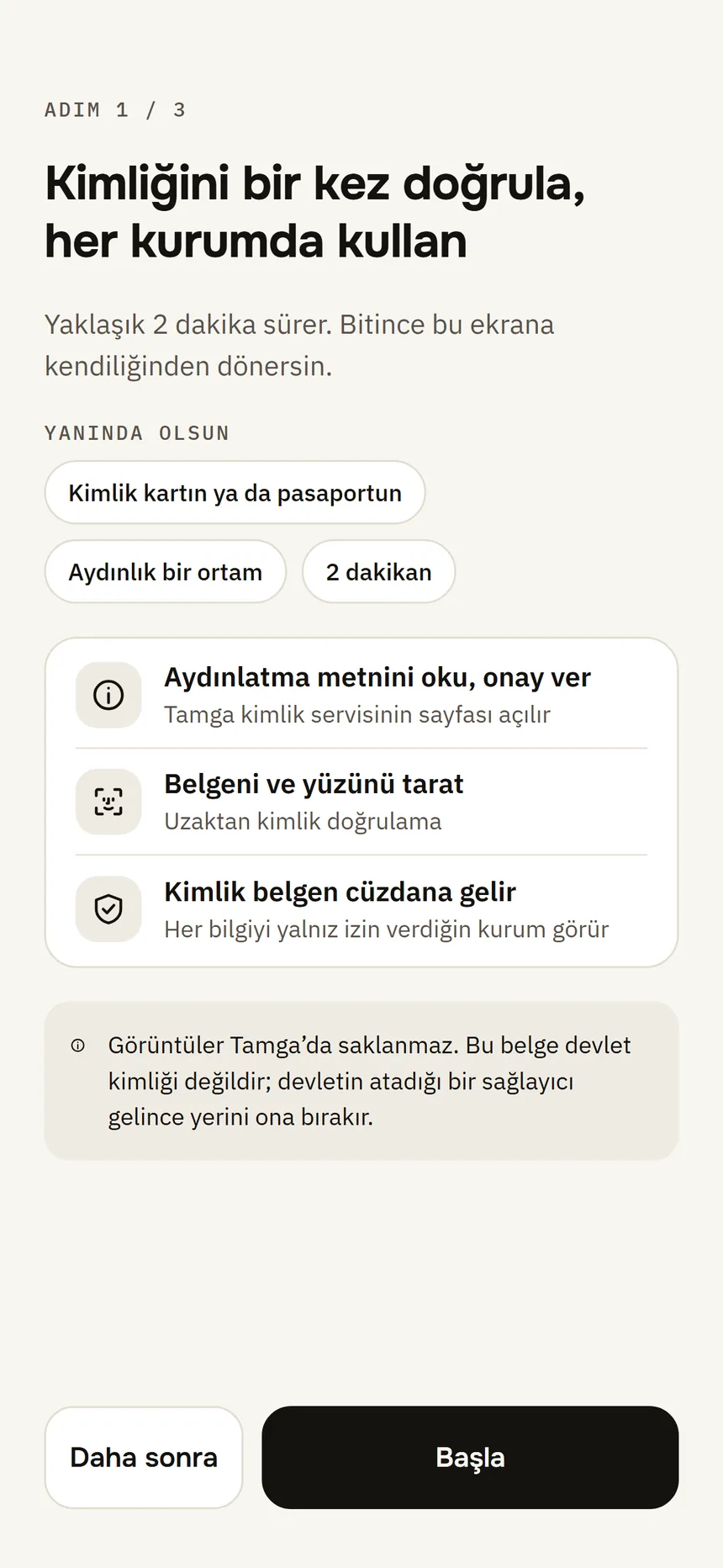
Identity check Step 3: Read the privacy notice and give consent
The Tamga identity service page opens inside the app. Its address and a lock icon are shown at the top.
Step 4: Scan your document
The page takes you to the remote identity verification provider (Didit). Follow its instructions and show your ID card or passport to the camera.
Step 5: Scan your face
The provider checks that your face is live and matches the photo on the document.
Step 6: Return to the wallet
When it is done you are back in the wallet automatically; “Your identity credential is ready” appears. You can now get credentials from institutions.
Good to know
- This credential is not a government ID (PID); it gives way to a government-appointed provider once there is one.
- Images are not stored by Tamga. The data controller is the organisation that operates the identity service; details in the privacy policy.
- The name, date of birth, nationality and ID number in your identity credential open only to institutions you allow.
- Refreshing your identity credential repeats identity verification.
- When scanning: keep the whole document in the frame with no glare on it; for the face scan, keep your face uncovered and well lit.
Related guides
- If identity verification failsIf verification stops halfway or does not pass, read the message, fix the conditions and start again from the home screen.
- The in-app page and “Continue in the browser”The identity verification page opens inside the app; if the camera does not work there, you can continue the same page in your phone's browser.
- Request a credential from the institution listYou pick the institution from the in-app list and request the credential; the institution matches your identity credential with its own record and sends it.