Check your activity history
The History tab lists who you showed which fields to and when, and which credentials you received; the log stays on this phone only.
Topics in this guide
Steps
Step 1: Open the History tab
Shared, declined and failed requests, received and deleted credentials, pseudonym entries and your requests are here.
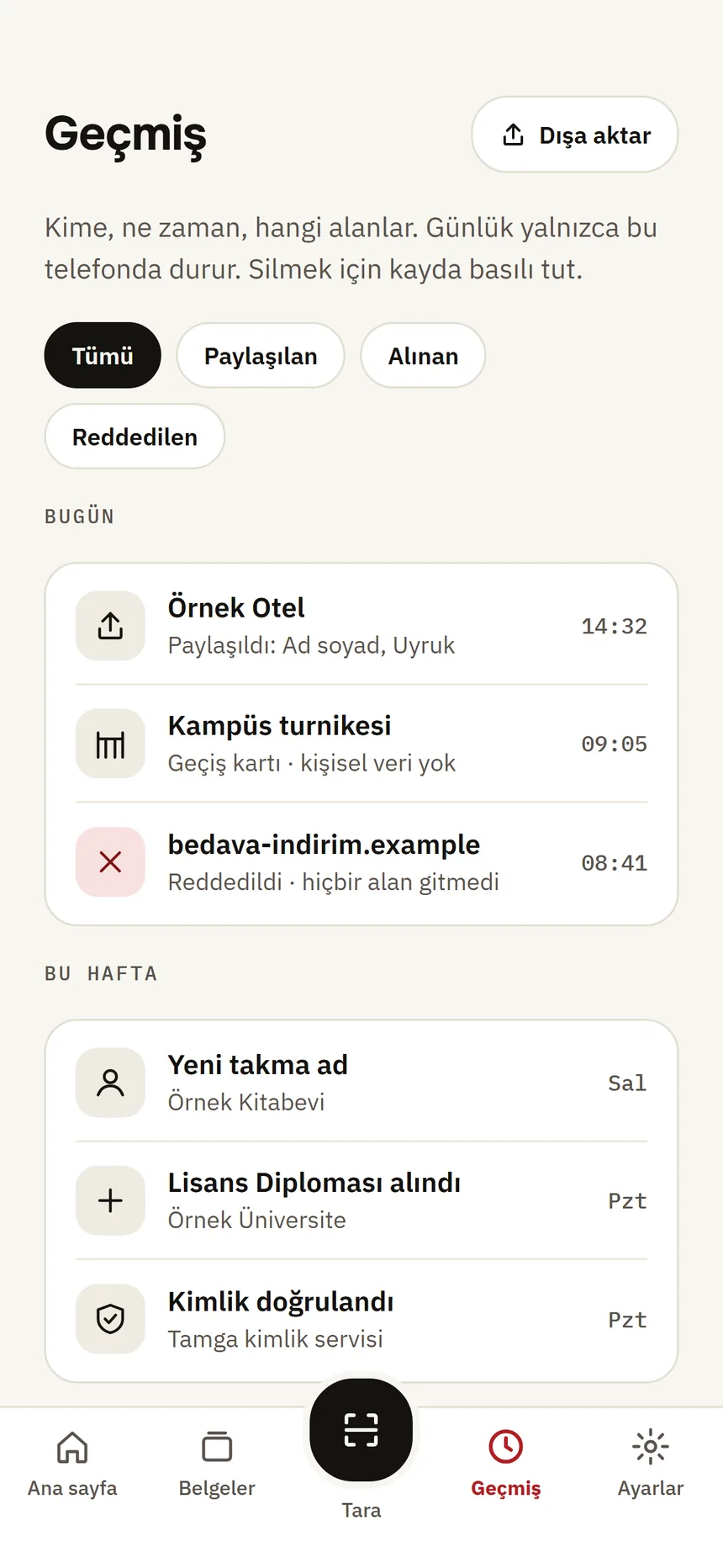
Activity history Step 2: Tap an entry
For a credential entry, the credential opens. For a sharing entry, you are asked “What would you like to do about this sharing?”: a deletion request or a report.
Step 3: Press and hold an entry to delete it
At “Delete this entry?”, tap Delete entry.
Step 4: Export the log
Export log: the log is written to a file protected with a password you choose; save it anywhere with the share menu.
Good to know
- The log stays on this phone only; it does not go to Tamga.
- Deleting an entry only removes it from this phone's log; the verifier is not notified and nothing else changes.
- The exported file holds who received which field names and when — never the values.
Related guides
- Who I've shared withYou see every organisation you have shown information to, and what you shared when, in one list; from here you can ask for deletion or report.
- Ask an organisation to delete your data, or report itYou can ask an organisation you showed information to to delete your data, or report a suspicious request to the data protection authority. The wallet prepares the text; you send it.
- Move to a new phoneOn the old phone you create a password-protected move file; opening it on the new phone brings your credential list and history, and you get the credentials themselves from the institutions again.