How it works
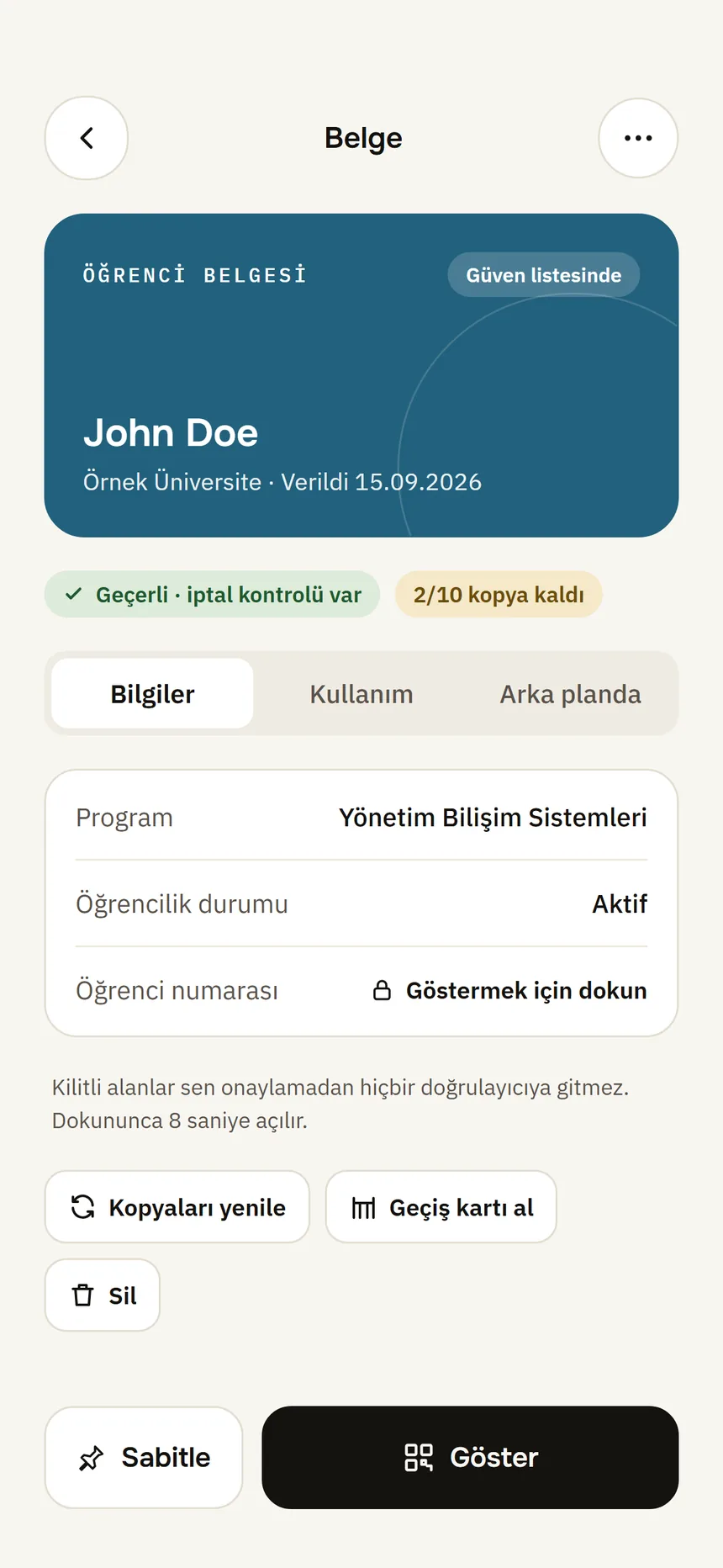
Tamga Wallet does three things: it receives the documents institutions issue to you, keeps them on your phone and shows them when you approve. Nobody in between can see or copy your document.
1. Receive
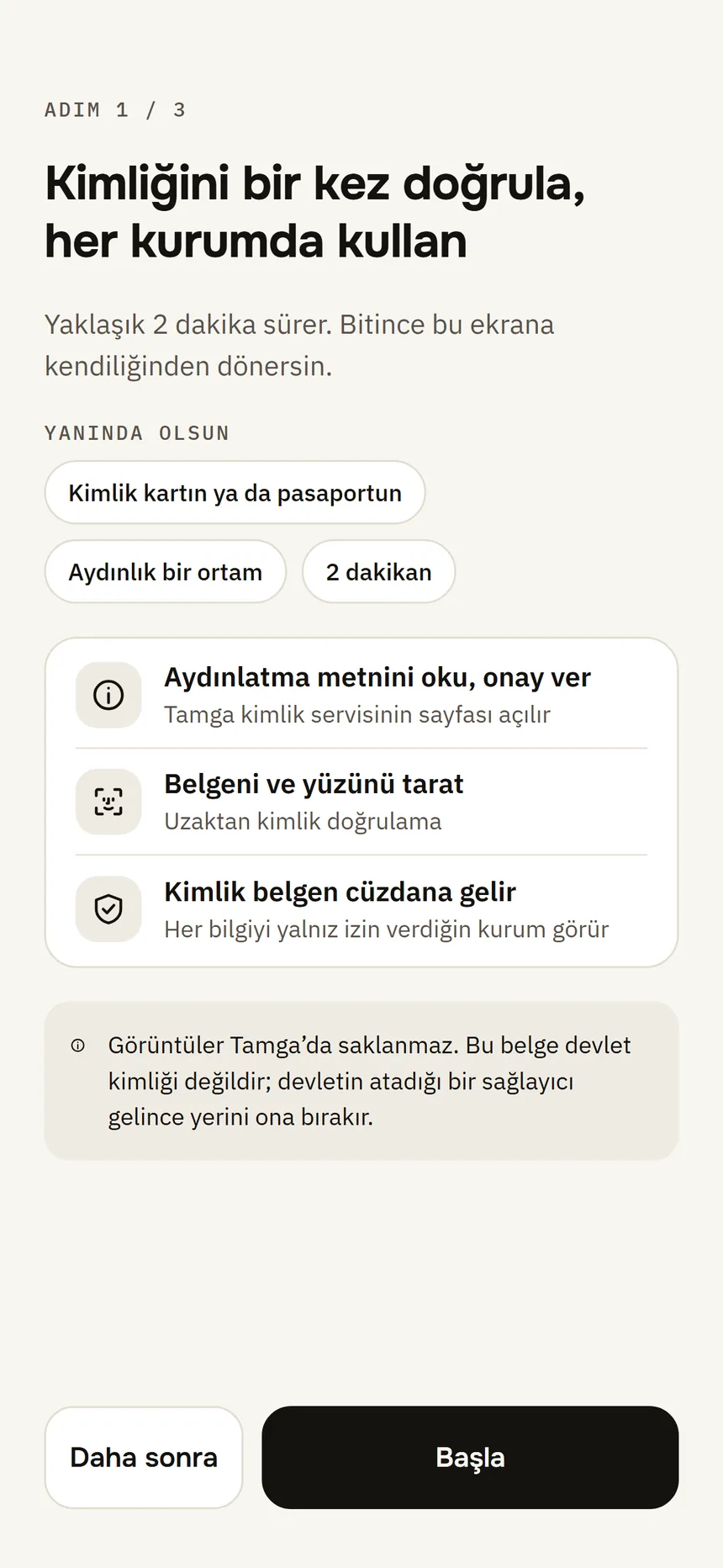
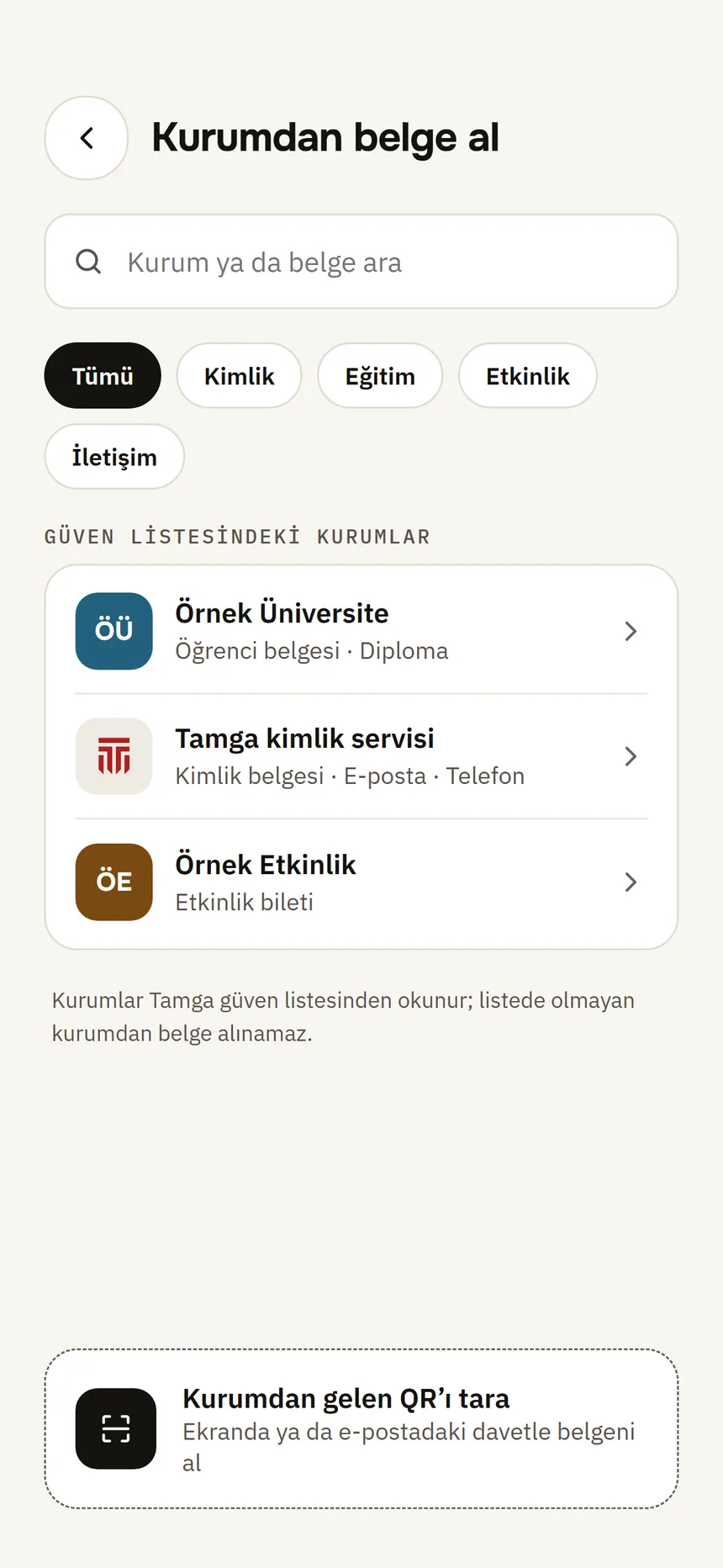
Institutions issue the documents: your university issues your diploma or student card, an event organiser your ticket. Scan the QR code the institution shows on a screen or in an email with the Scan button in Tamga Wallet, or pick the institution from the list in the app.
- The wallet first checks whether the institution is registered on the Tamga Network trust list. Documents are not accepted from institutions that are not on the list.
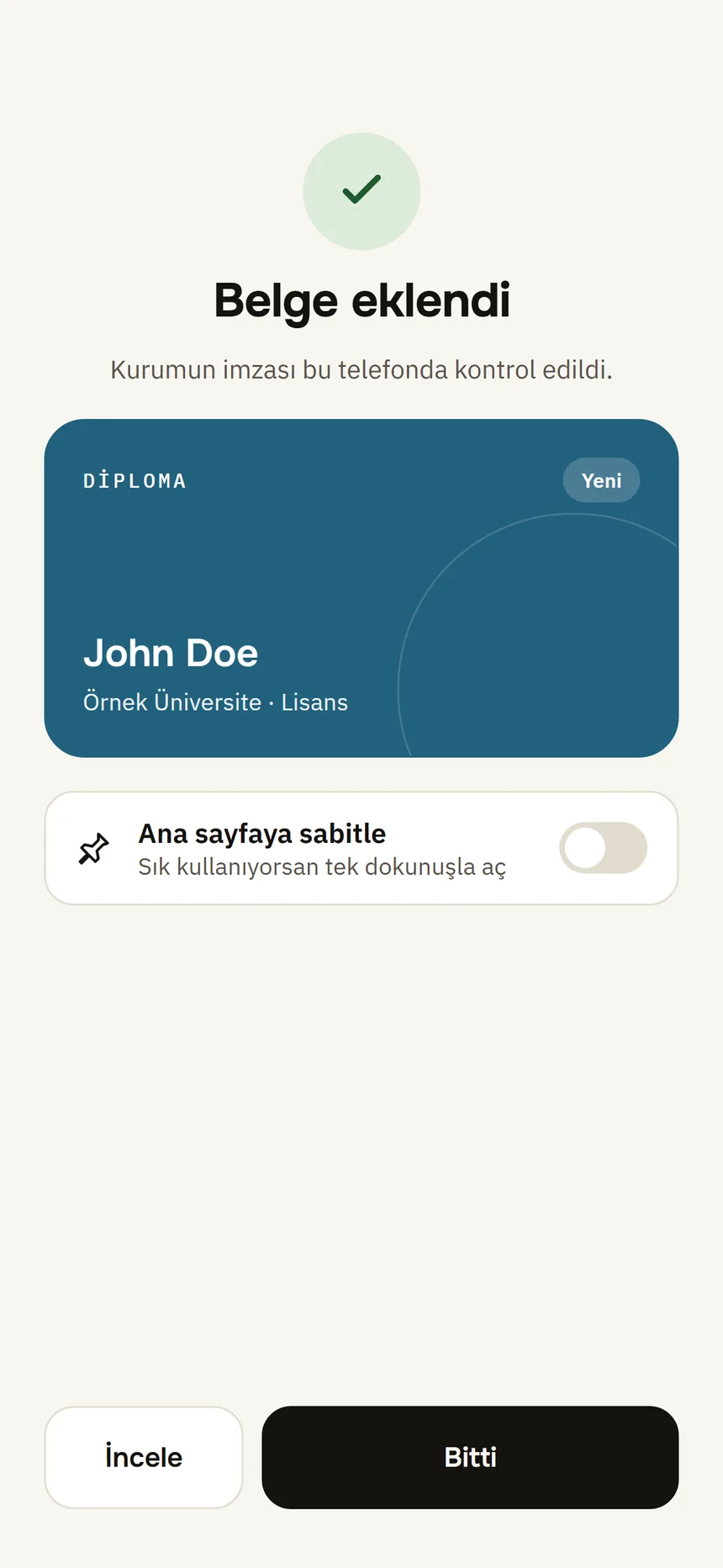
- The document arrives with the institution's digital signature. The signature proves that it comes from that institution and has not been changed, and it is checked on your phone.
- Some institutions ask who you are before they issue a document. For that you verify your identity once, remotely (with your ID card and your face), and then show the identity credential in your wallet. Images are not stored by Tamga.
2. Keep
The document stays on your phone, encrypted. The encryption key exists only on that phone; a copy that ends up in a phone backup cannot be read. Tamga keeps no copy of the document.
- Each document comes with several copies. The same institution always gets the same copy and different institutions get different copies, so institutions cannot combine what you showed them to track you.
- When copies run low, some documents renew themselves while the app is open. You can turn this off in Settings; identity and contact credentials never renew on their own.
- If a document is revoked or about to expire, the wallet notices by itself and shows a notification on your phone. No server sends you notifications.
3. Show
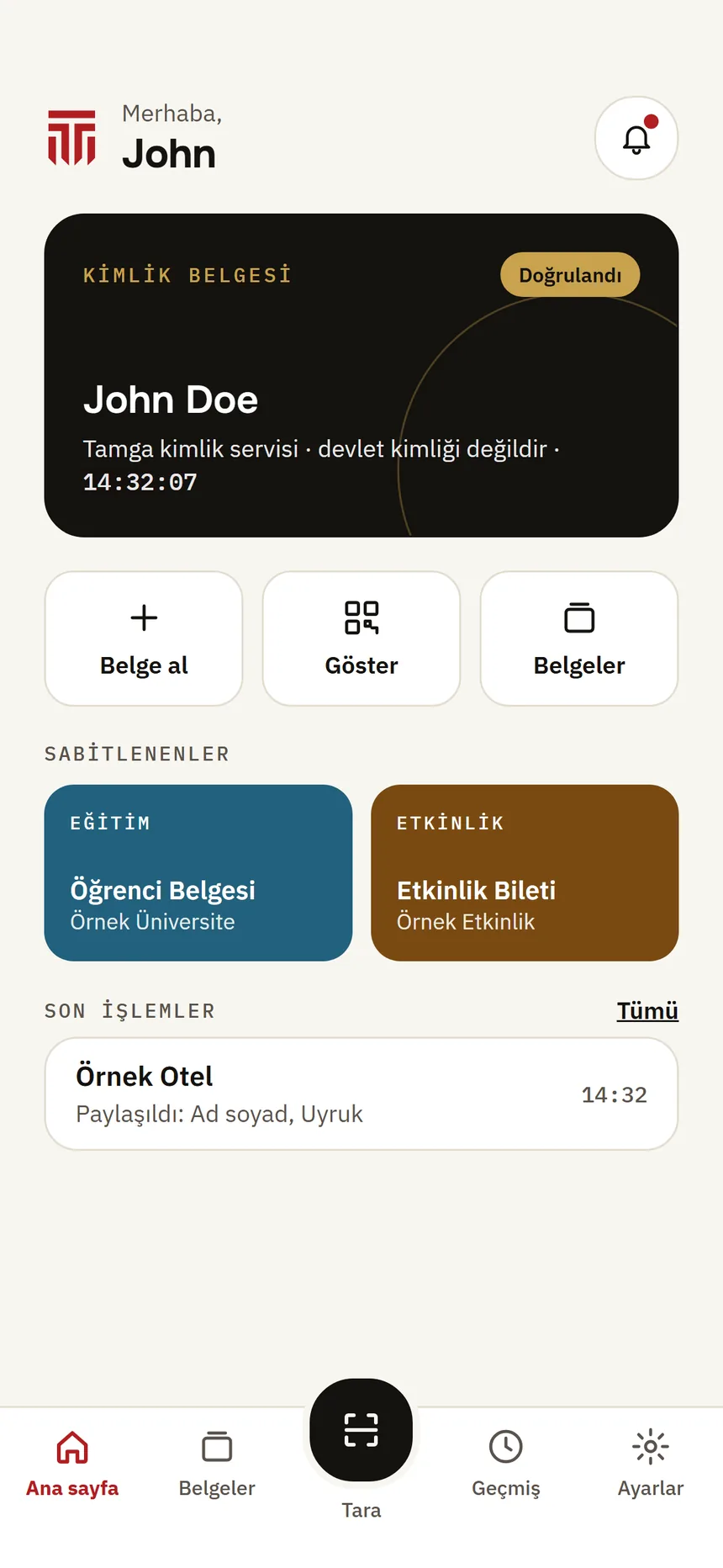
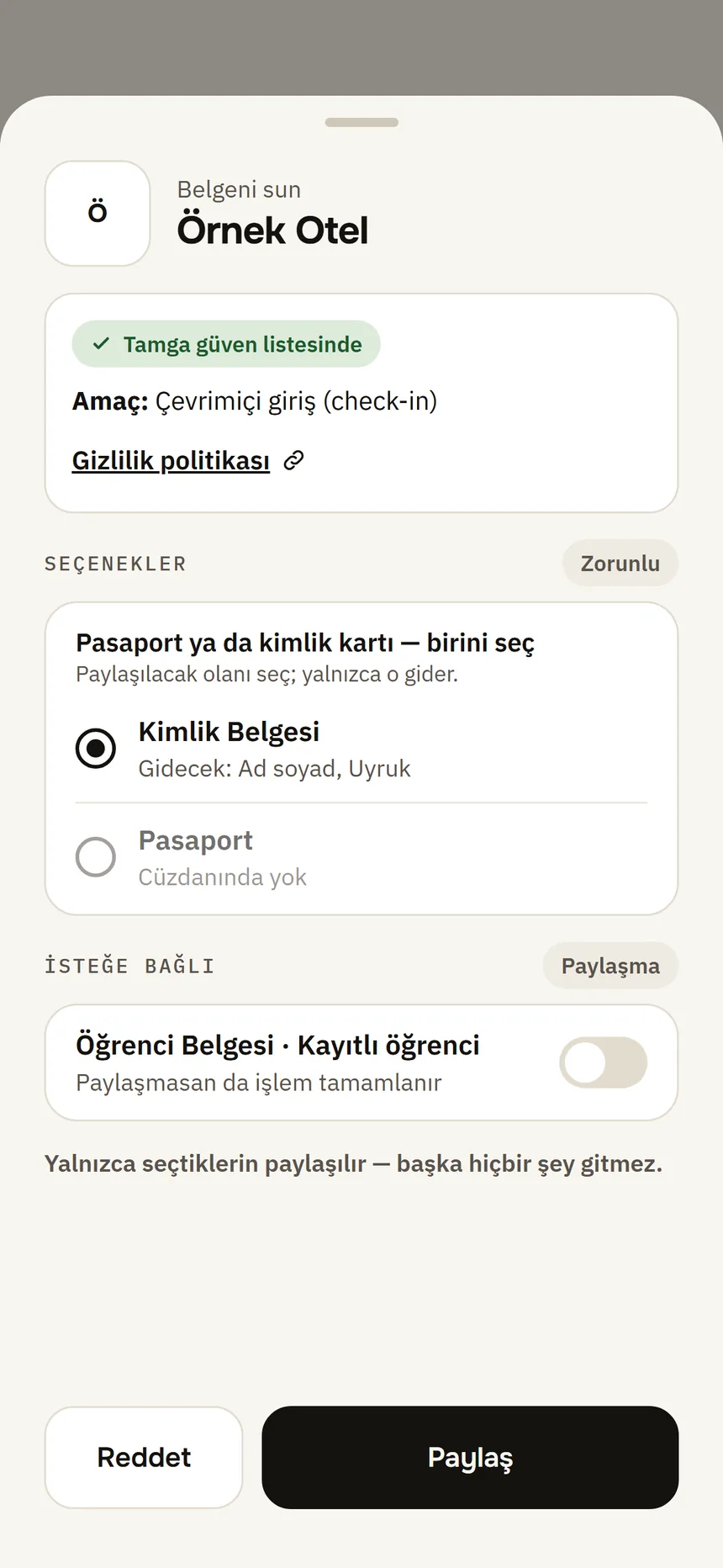
When a website, a door or a desk asks for a document, the wallet shows you who is asking, which information and why. Information that was not asked for stays on your phone.
- Approval: you approve each sharing with your phone's own lock (your face, fingerprint or phone passcode). Without your approval nothing is sent.
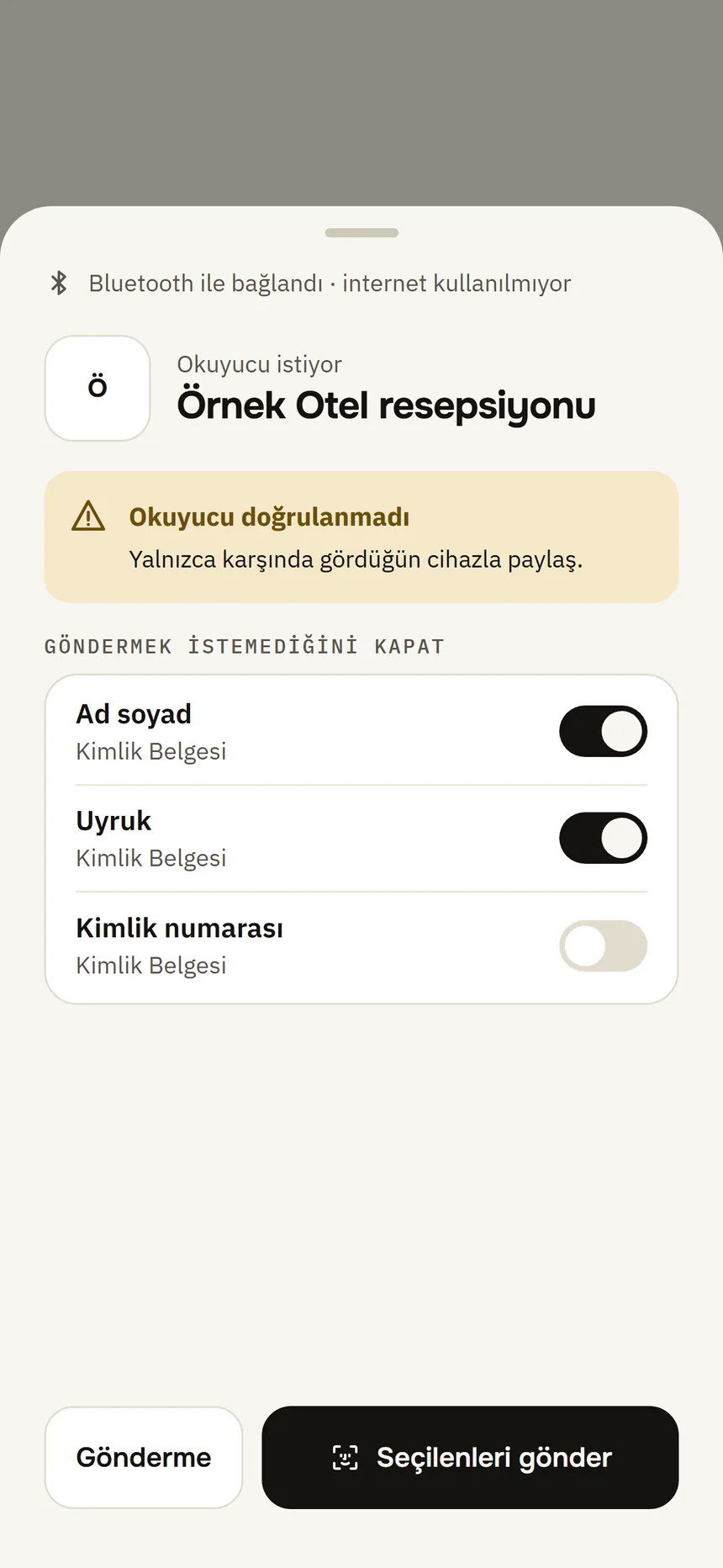
- Over-asking warning: if a verifier asks for information outside its registered purpose, or is not on the trust list, the wallet shows a separate warning and holds the Share button for a few seconds.
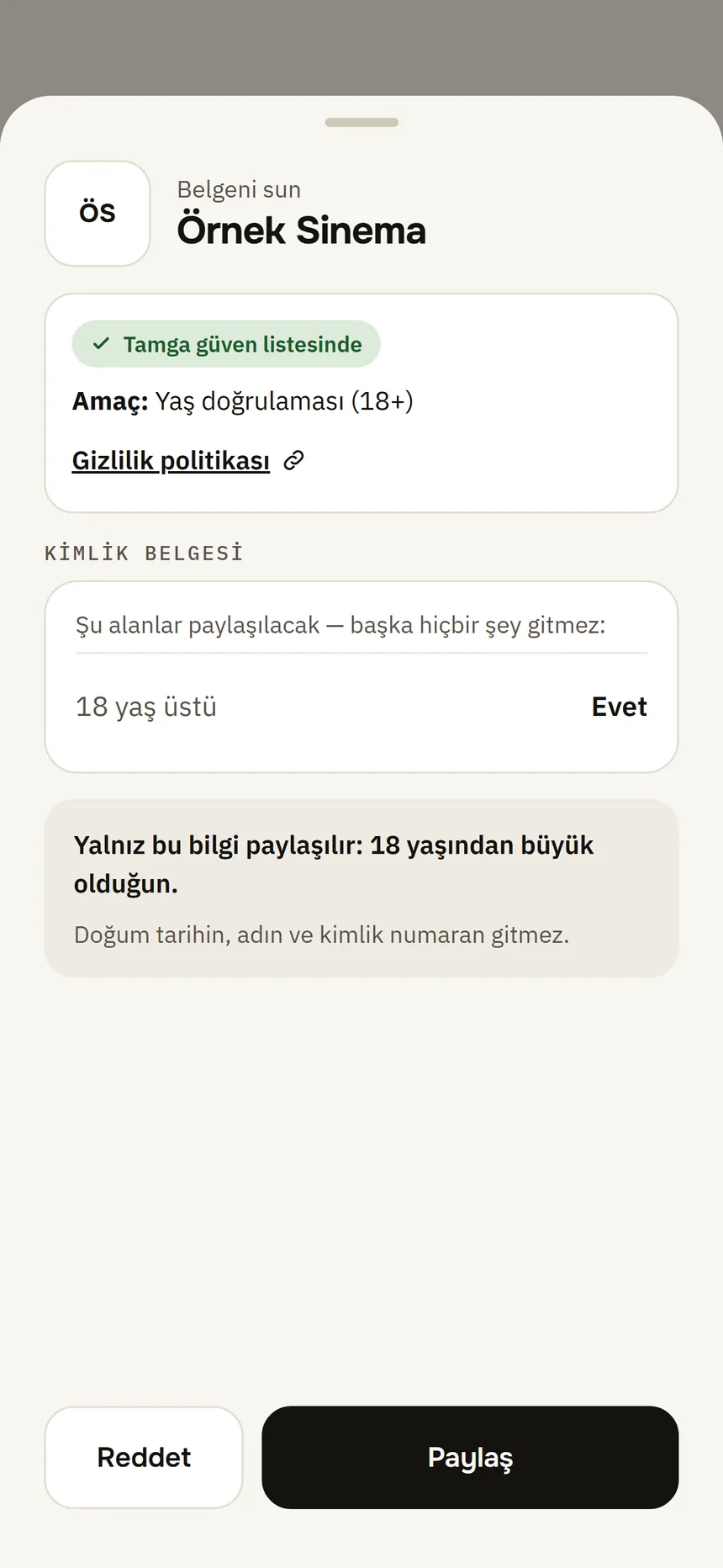
- When your age is asked: if a site asks only for “Over 18”, only that answer is sent. With a zero-knowledge proof your date of birth, your name and the credential itself are not shown; if your phone cannot create the proof, still only that yes/no field is sent: Prove your age.
- Online: scan the QR code on the site or tap the link. The site checks in seconds that the document is genuine, current and not revoked, without having to ask the institution.
- In person: at a desk or a door a reader scans a QR code and then connects to your phone over Bluetooth; no internet needed. Your phone's NFC is not used.
- Sign in with Tamga: sign up and sign in to supporting websites without a password. Each site knows you by a separate pseudonym.
- History: what you showed to whom is recorded only on your phone. From there you can also send an institution a “delete my data” request.
Try it on the sandbox
Tamga Network has a test network: the sandbox. It has sample institutions, made-up people and test documents. Sandbox documents are not valid anywhere real; the real network and the test network never trust each other.
- Open the test network's page: sandbox.tamga.network.
- In Tamga Wallet go to Settings → Developer → Network and choose Sandbox. A “SANDBOX · TEST” strip appears at the top of the app.
- Get test documents from the sample institutions on the sandbox page and show them on the sample sites.
- When you are done, switch back to the real network in the same place. Sandbox documents stay on the phone but are hidden and not used.