I lost my phone
With your revocation code you close your wallet from any browser; then you set it up on a new phone and get your credentials from the institutions again.
Topics in this guide
Before you start
- The revocation code you saved during setup.
- Any device connected to the internet.
Steps
Step 1: Open the closing page
On another phone or a computer, open the link on the Lost phone page.
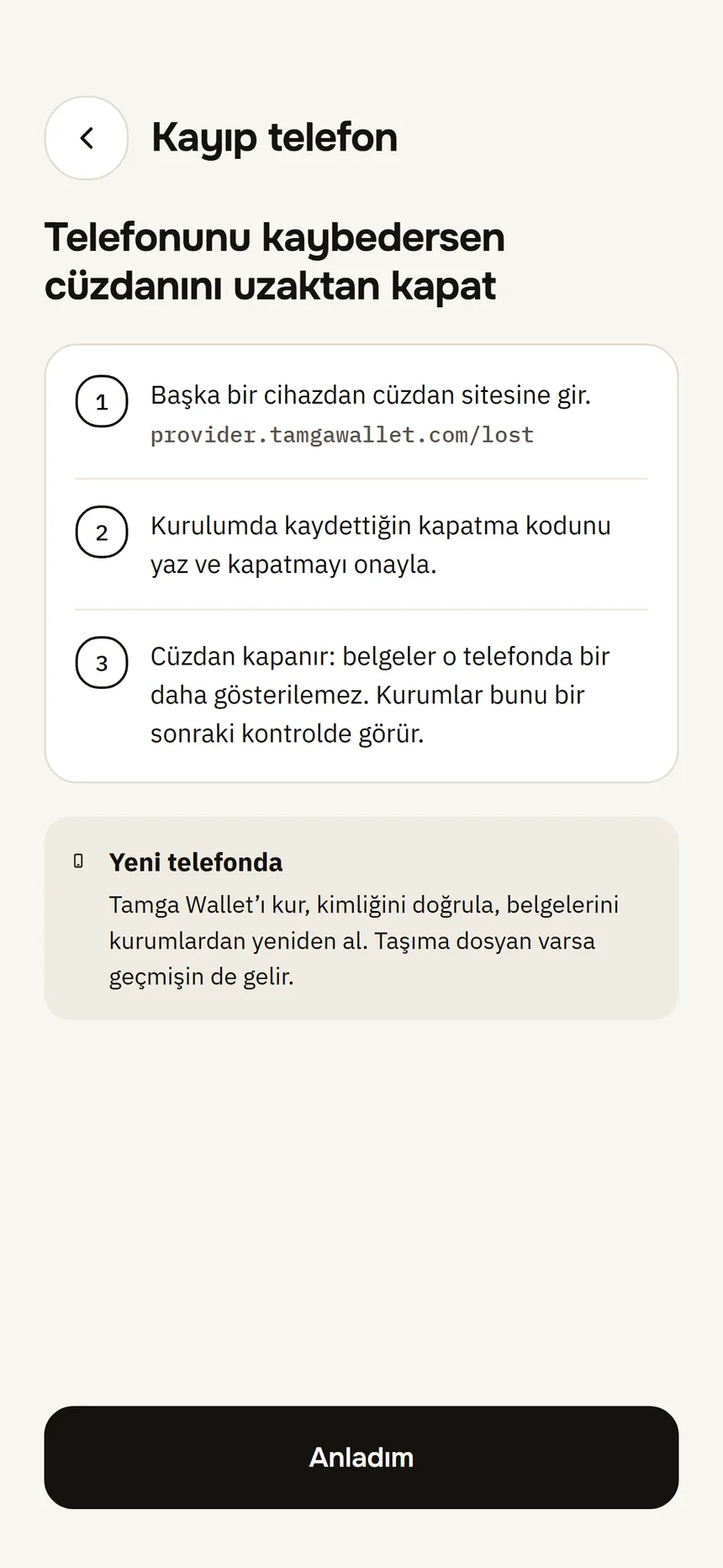
Lost phone Step 2: Enter your revocation code and confirm
The page asks for no name, phone number or email. Case and dashes do not matter.
Step 3: Install Tamga Wallet on the new phone
Step 4: Get your credentials from the institutions again
Keys are bound to the old phone, so credentials do not move; you get each one again from its institution.
Step 5: Ask for your records to be deleted, if you want
Closing does not delete your records at Tamga. To delete them: Delete my data.
Good to know
- Once closed, institutions stop issuing credentials or renewals to that wallet; credentials from the Tamga identity service are revoked within 24 hours.
- If the old phone ever connects to the internet again, the wallet deletes its credentials by itself.
- If you do not have the code: verifying your identity again on the new phone automatically revokes the identity credential on the old one.
- If you find the phone, it shows “This wallet was closed” when opened; set it up again with This is my phone — set up again.
- When you verify your identity again, your “Sign in with Tamga” pseudonyms come back.
- With the same code you can see on the My wallet status page whether your wallet is active or closed — and, if Tamga Wallet closed it for a security reason, why. Issues that affect several wallets are listed on the Security advisories page.
Related guides
- Save your revocation codeThe revocation code lets you close your wallet from any browser if you lose your phone. It is shown only once.
- Move to a new phoneOn the old phone you create a password-protected move file; opening it on the new phone brings your credential list and history, and you get the credentials themselves from the institutions again.
- Verify your identityYou verify once remotely with your ID card or passport and your face; the result is an identity credential on your phone that institutions recognise you by.