Use an access pass at a turnstile or gate
You register an access pass once for your student certificate or ticket; then you hold a constantly refreshing QR code that contains no name or number to the turnstile.
Topics in this guide
Before you start
- A student certificate or an event ticket.
- A turnstile or gate terminal of the institution registered in the Tamga trusted list.
Steps
Step 1: On the credential page, tap Get an access pass (turnstile)
For a ticket the button is Prepare for gate entry. You can also register by scanning the institution's “Campus access” QR code with Scan.
Step 2: Approve on the approval screen
With your phone's lock (Face ID / Touch ID or the phone passcode). At the end “Access pass saved” appears.
Step 3: At the gate: Home → Show
A large QR code and a live clock appear. Hold it to the turnstile.
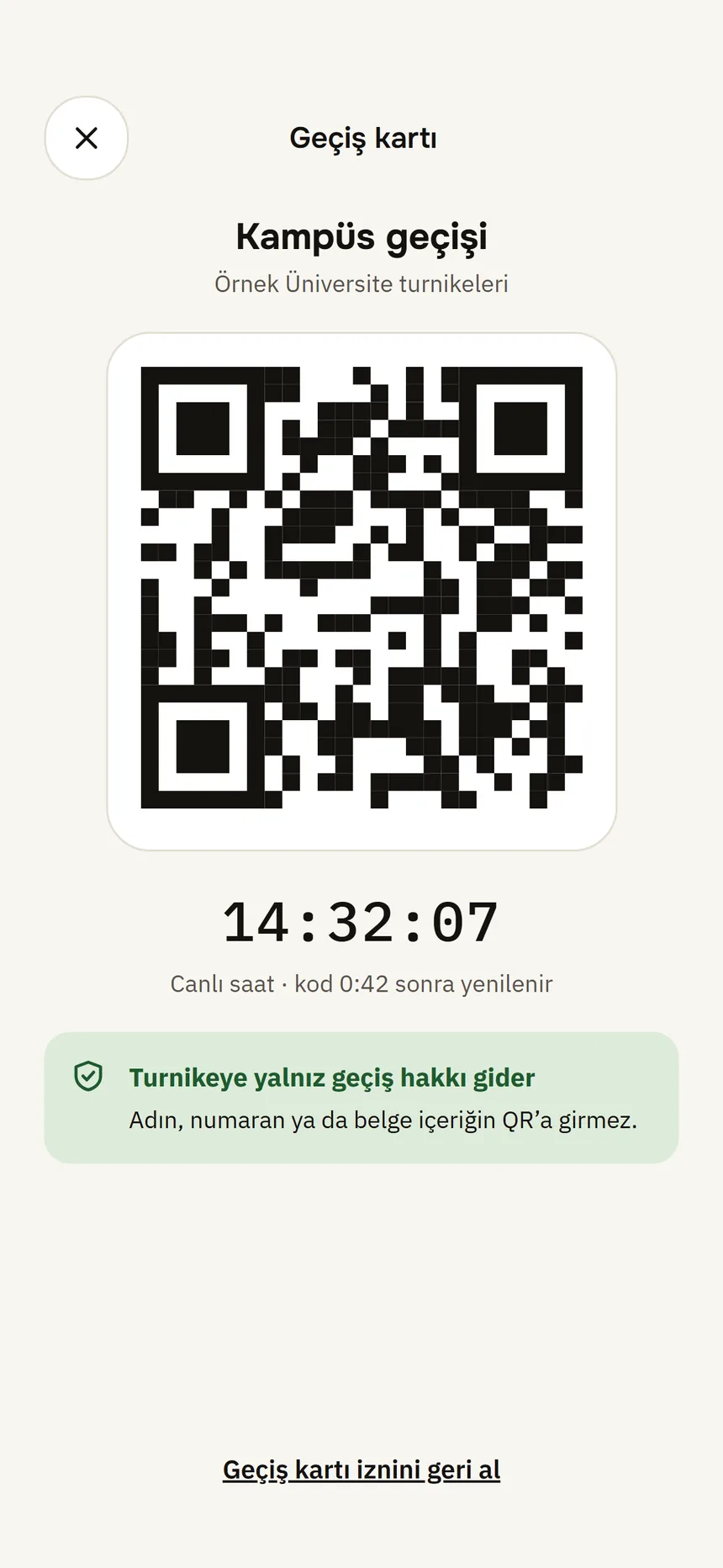
Pass QR code Step 4: While locked: Show access pass on the lock screen
It asks for Face ID; it does not unlock the wallet, it only shows the pass code.
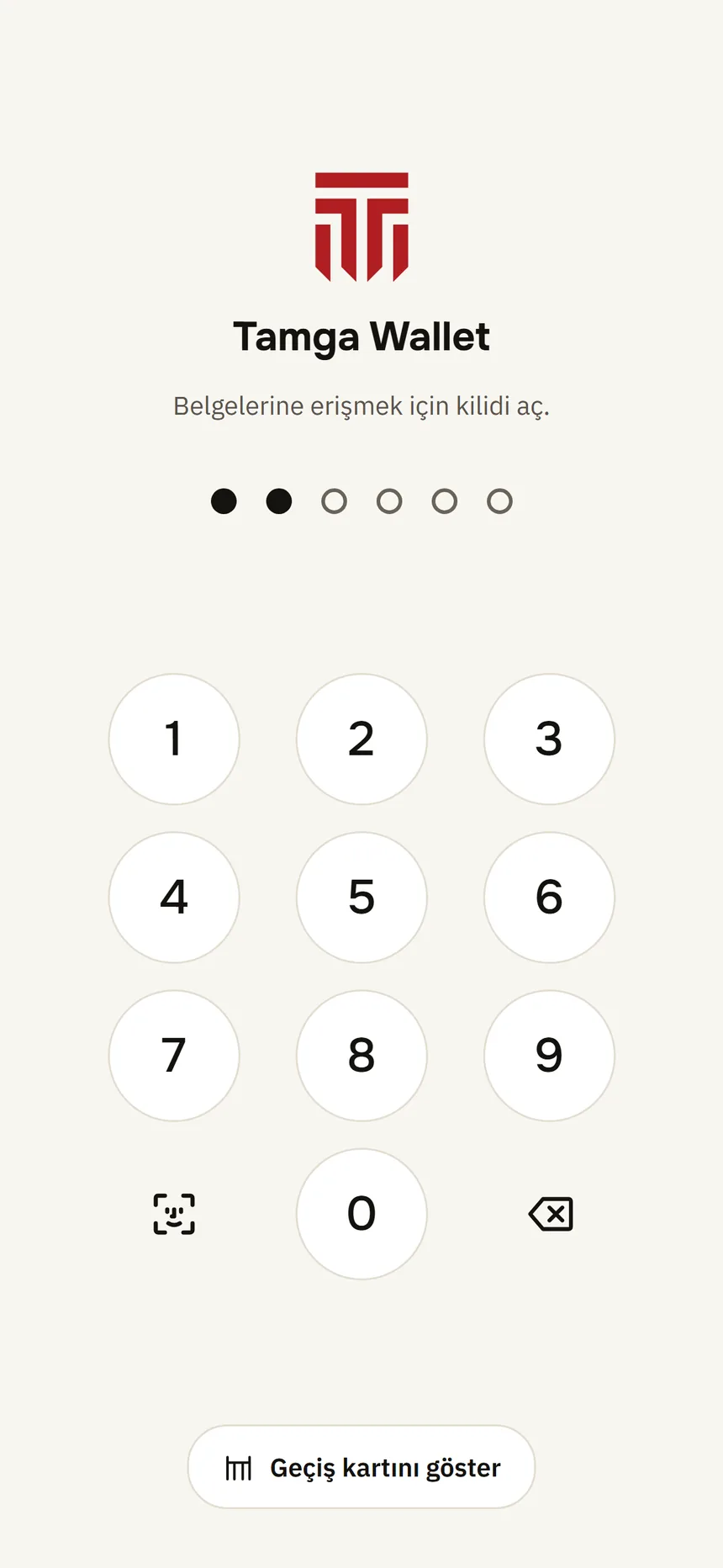
Lock and PIN Step 5: To stop: Withdraw access pass consent → Withdraw
The access pass is deleted; to use it again you need to register again.
Good to know
- Your name, number or credential content is not in the QR code; only the access right is sent.
- The code refreshes at short intervals and shows a live clock; a screenshot will not work.
- A ticket pass is single entry: the ticket is used on the first scan.
- The terminal checks the pass offline; it works even if your phone has no internet. Every showing is written to History.
- Turn off the lock screen button in Settings → Security → Show pass while locked; it does not appear when Face ID / Touch ID is off.
- If you refresh the credential's copies, linked access passes need to be registered again.
Related guides
- Show in personAt a desk or a door there are two ways: the other person scans a result QR code with their own phone camera (Get checked), or a reader device connects over Bluetooth.
- What works without internet?Without internet you can still view and show your documents; getting, renewing and the revocation check need a connection.
- Auto-lockYou choose how long the wallet stays open after you leave the app.