Add driving licence information
You show your driving licence card once; the categories and dates printed on it come to your wallet. It is not an official driving licence.
Topics in this guide
Before you start
- A valid identity credential in your wallet: Verify your identity.
- Your driving licence card, good light and about 2 minutes.
Steps
Step 1: Documents → + → Add driving licence information
This option only appears while the service is available. If you have no identity credential, the screen asks for it first.
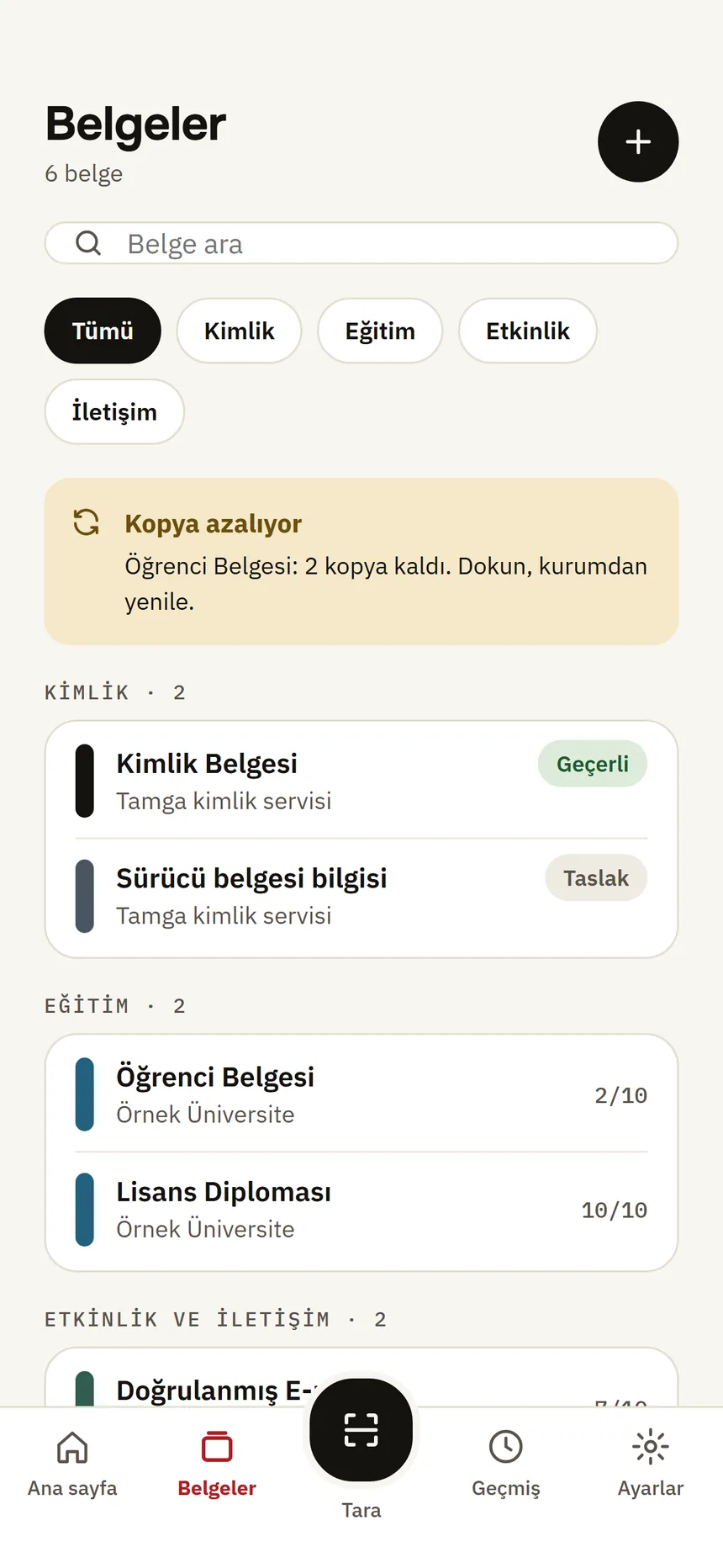
Documents Step 2: Read the screen and tap Open in the browser
Your identity credential is presented first: only given name, family name and date of birth go to the Tamga identity service — to match the card to you.
Step 3: Accept the consent page, scan your card and your face
Make sure the back of the card is readable too; the categories are read from it.
Step 4: The information comes to your wallet
Categories, issuing country and card dates. The card says “Not an official driving licence”.
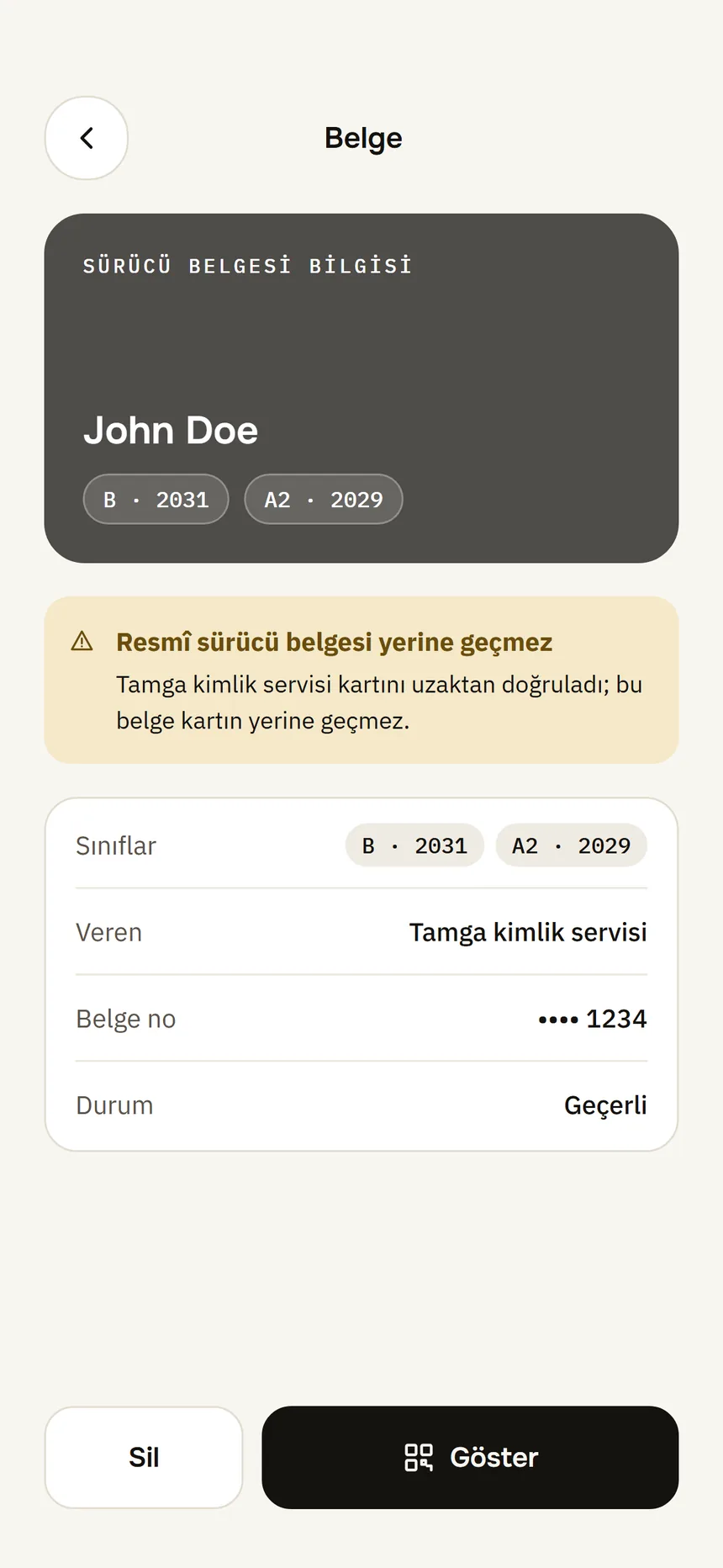
Driving licence information
Good to know
- It is not an official driving licence. It is not a driving licence or a mobile driving licence and is not valid in traffic checks or official procedures. For things like car rental you show only what is needed instead of sending a photo of the card.
- It is valid until the card expires, at most 1 year. Renewing checks your card again.
- Only your own card can be added: the name and date of birth on it must match your identity credential.
- An expired card, or a card whose categories have all expired, is not accepted.
Related guides
- Verify your identityYou verify once remotely with your ID card or passport and your face; the result is an identity credential on your phone that institutions recognise you by.
- Show a credential on a websiteThe website shows a QR code; you scan it with Scan, see who is asking for what and why, and approve only those fields.