Auto-lock
You choose how long the wallet stays open after you leave the app.
Topics in this guide
Steps
Step 1: Settings → Security → Auto-lock
“How long should the wallet stay open after you leave the app?”
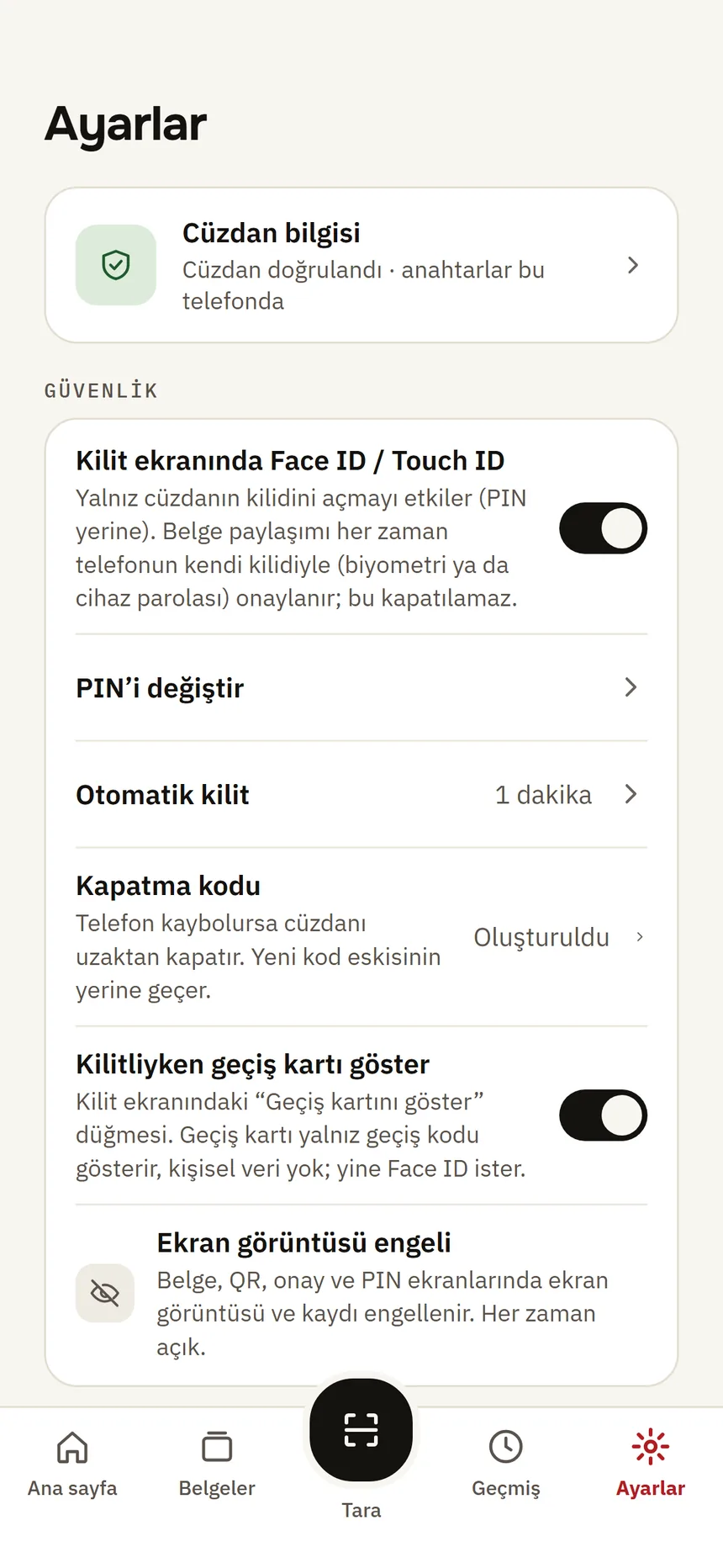
Security settings Step 2: Choose the time
Immediately, 1 min (Recommended), 5 min or 15 min.
Step 3: When the time is up, the wallet locks
Open it again with Face ID / Touch ID or your PIN.
Good to know
- Every presentation is approved with your phone's lock (Face ID / Touch ID or the phone passcode), whatever this setting is; the app's PIN is not used to approve sharing.
- While locked you can show your access pass from the lock screen: Access pass.
Related guides
- Turn on Face ID / Touch IDYou open the wallet with your face or fingerprint instead of the PIN; the PIN always stays as a backup.
- Screenshot protectionScreenshots and screen recordings can’t be taken on credential, QR, approval and PIN screens; this is always on and cannot be turned off.
- Use an access pass at a turnstile or gateYou register an access pass once for your student certificate or ticket; then you hold a constantly refreshing QR code that contains no name or number to the turnstile.