I forgot my PIN
Tamga does not know your PIN and cannot recover it; the app has no “Forgot PIN” option. If Face ID / Touch ID is on, you open the wallet with it; if not, you set the wallet up again.
Topics in this guide
Steps
Step 1: If Face ID / Touch ID is on, use it
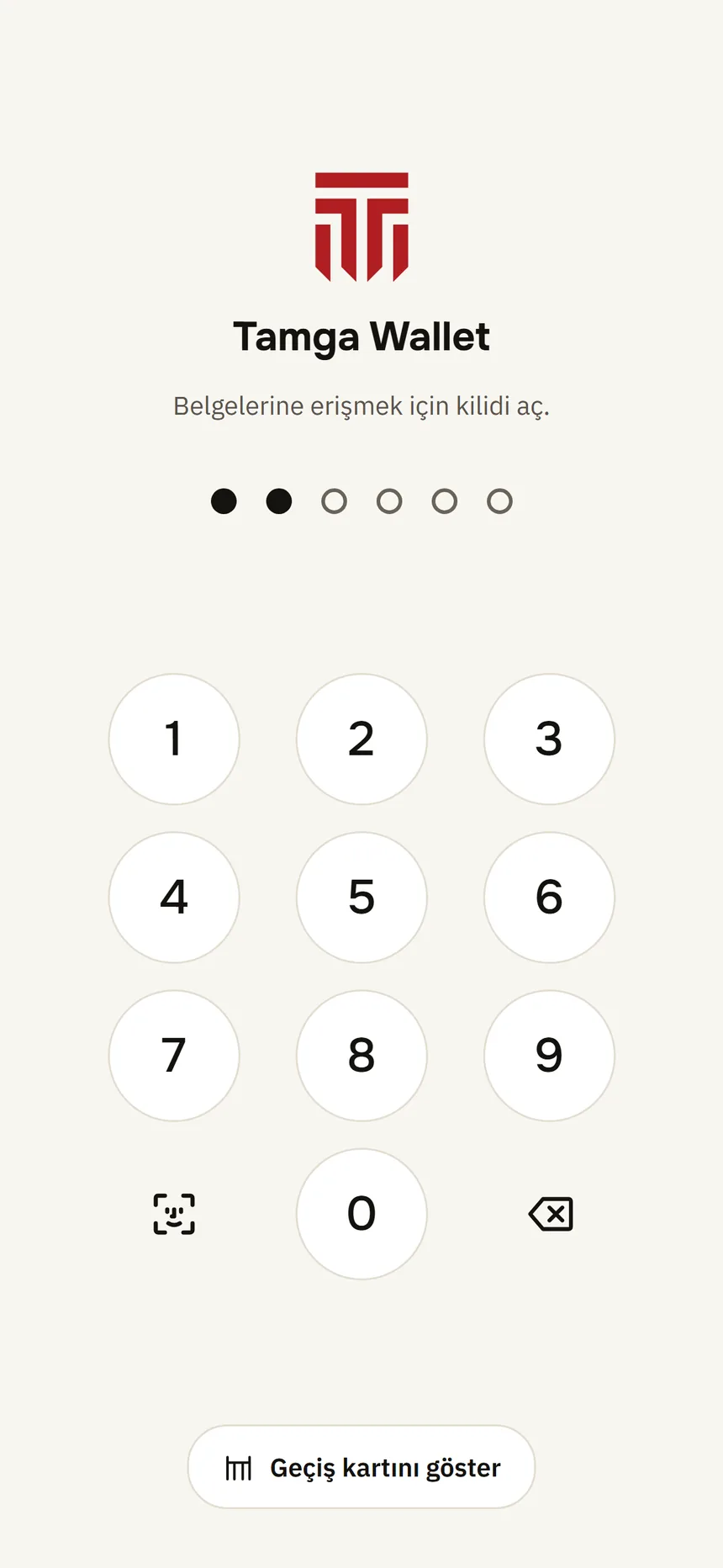
On the lock screen it is asked automatically when the app opens, or tap the button at the bottom left of the keypad.
Lock and PIN Step 2: Mind the waiting time while you try to remember
After 5 wrong PINs in a row the app makes you wait: 30 seconds, 1 minute, 2 minutes… up to 1 hour.
Step 3: Reset the wallet to get a new PIN
If you opened it with Face ID: Settings → Reset wallet → Reset. Change PIN asks for your current PIN first, so you cannot use it without knowing the PIN.
Step 4: If you cannot open the wallet, delete and reinstall the app
Deleting the app deletes the wallet data on the phone; after reinstalling, setup starts from the beginning.
Step 5: Set it up again
Choose a new PIN, verify your identity again and get your credentials from the institutions again.
Good to know
- The PIN locks the keys on your phone and never goes to a server; that is why it cannot be recovered.
- Reset wallet also deletes your records at Tamga Network's services. Deleting the app only removes what is on the phone; for your records at Tamga: Delete my data.
- If you deleted the app, you can close the old wallet registration with your revocation code: Lost phone.
Related guides
- Turn on Face ID / Touch IDYou open the wallet with your face or fingerprint instead of the PIN; the PIN always stays as a backup.
- Set up your walletOn first launch a five-step setup greets you: PIN, Face ID / Touch ID, revocation code, identity verification and your first credential.
- I lost my phoneWith your revocation code you close your wallet from any browser; then you set it up on a new phone and get your credentials from the institutions again.