Open a credential's details
On the credential page you see what it contains, where it was used and its technical details.
Topics in this guide
Steps
Step 1: In the Documents tab, tap the credential
Find it with the “Search credential, institution or name” box or the category chips.
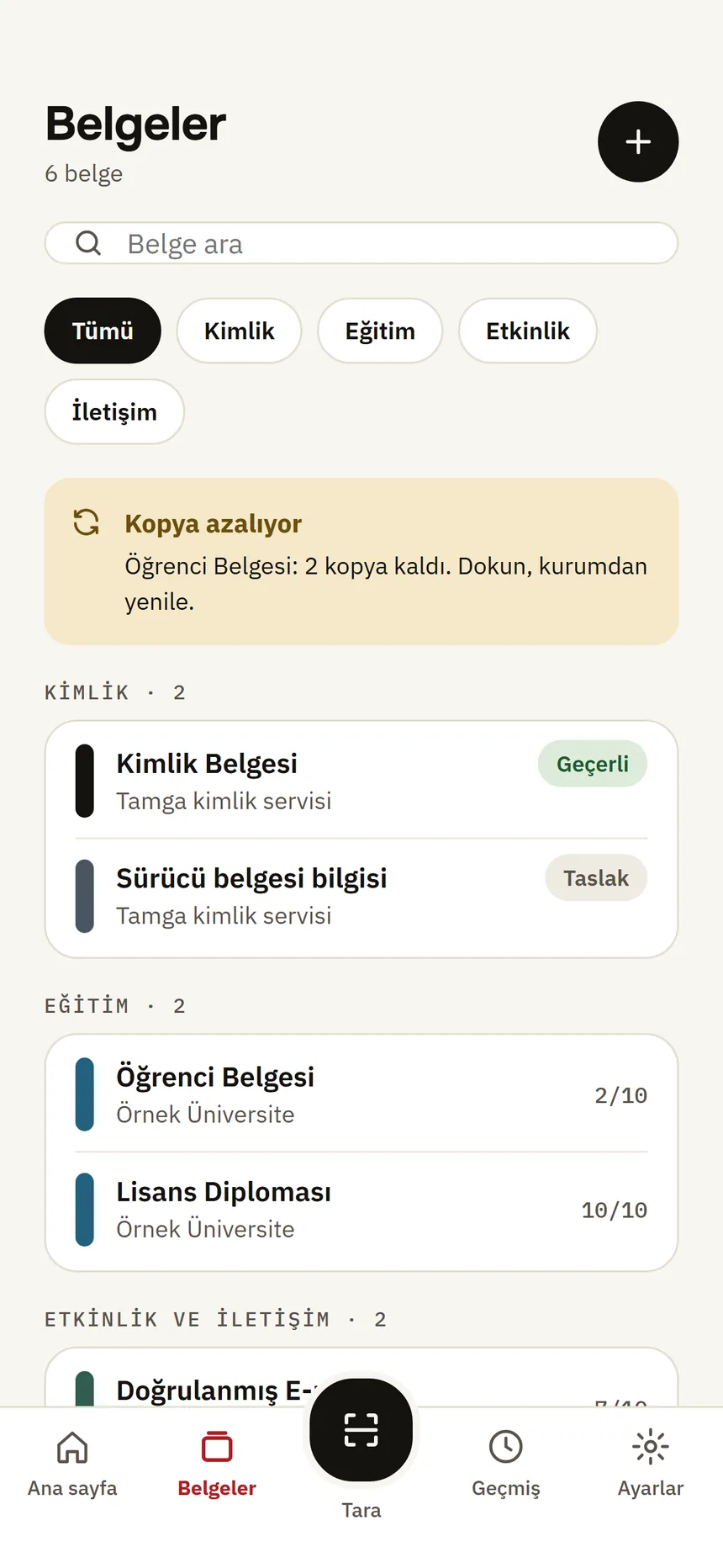
Documents Step 2: Look at the badges under the card
The status (e.g. “Valid · checked …”) and the uses left are shown here.
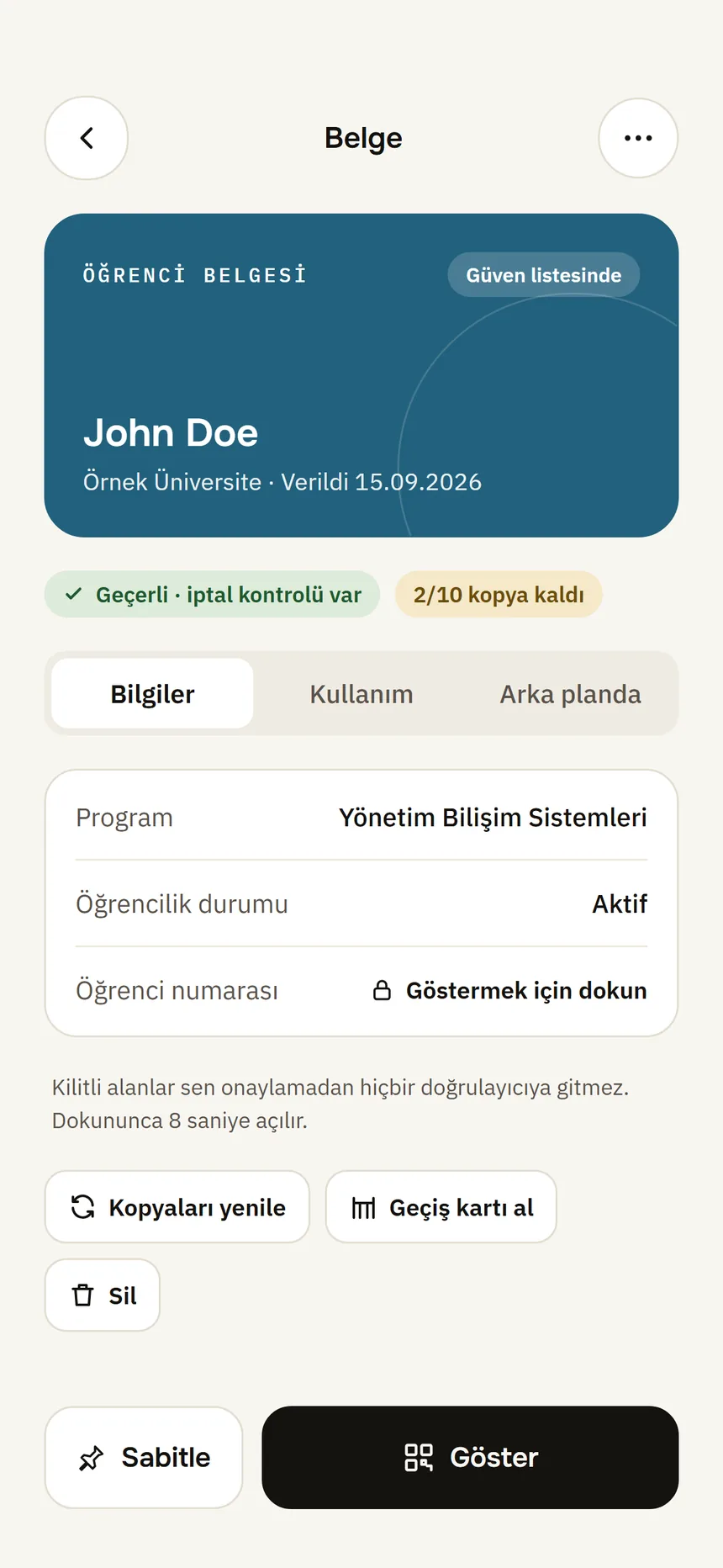
Document detail Step 3: The Details tab: the fields in the credential
Locked fields are hidden; tap one to reveal it for 8 seconds.
Step 4: The Usage and Behind the scenes tabs
Usage: where the credential was shown. Behind the scenes: type, institution ID, copies, certificate and status list.
Step 5: Pin a credential you use often
It appears under “Pinned” on the home screen; undo it with Unpin.
Good to know
- Locked fields never go to a verifier without your approval.
- Screenshots cannot be taken on the credential page.
- Each verifier gets its own copy; the same verifier always sees the same copy, so different verifiers cannot link you.
Related guides
- Credential status: valid, revoked, suspended, not verifiedWhen online, the wallet itself checks whether the institution has revoked a credential; the badge shows the result and when it was last checked.
- Expiry, notifications and refreshing copiesThe wallet warns you before a credential expires; when copies run low you get new ones from the institution.
- Delete a credentialYou delete a credential and its keys from this phone; you can get it from the institution again if you want.